Working remotely from another country comes down to three things: a laptop that survives transit, more than one way to reach the internet, and a device nobody can open but you. If you set those up before you fly, how to travel with a laptop and work remotely becomes a routine rather than a daily gamble. Most people who get burned by working abroad didn’t fail at work. They failed at preparation.
It takes an afternoon to prepare properly and about two hours to rehearse the whole setup. Here is the system I use, arranged so you can work through it in order.
Table of Contents
- What You Need
- Step-by-Step: A Remote-Work Travel System That Works
- 1. Audit Your Work and Backup Plan
- 2. Prepare Your Laptop for Border Checks and Flight Use
- 3. Build Redundant Internet and Power Options
- 4. Protect Your Device and Accounts
- 5. Set Up a Portable Workstation
- 6. Test the Complete Setup Before Departure
- 7. Work Safely During the Trip
- Common Mistakes
- Frequently Asked Questions
- Can I take my work laptop on an international flight?
- Will customs ask to see my laptop?
- Can I use a hotel Wi-Fi network to work?
- How much mobile data does remote work use?
- Should I work remotely from another country for tax or employment reasons?
- Conclusion
What You Need
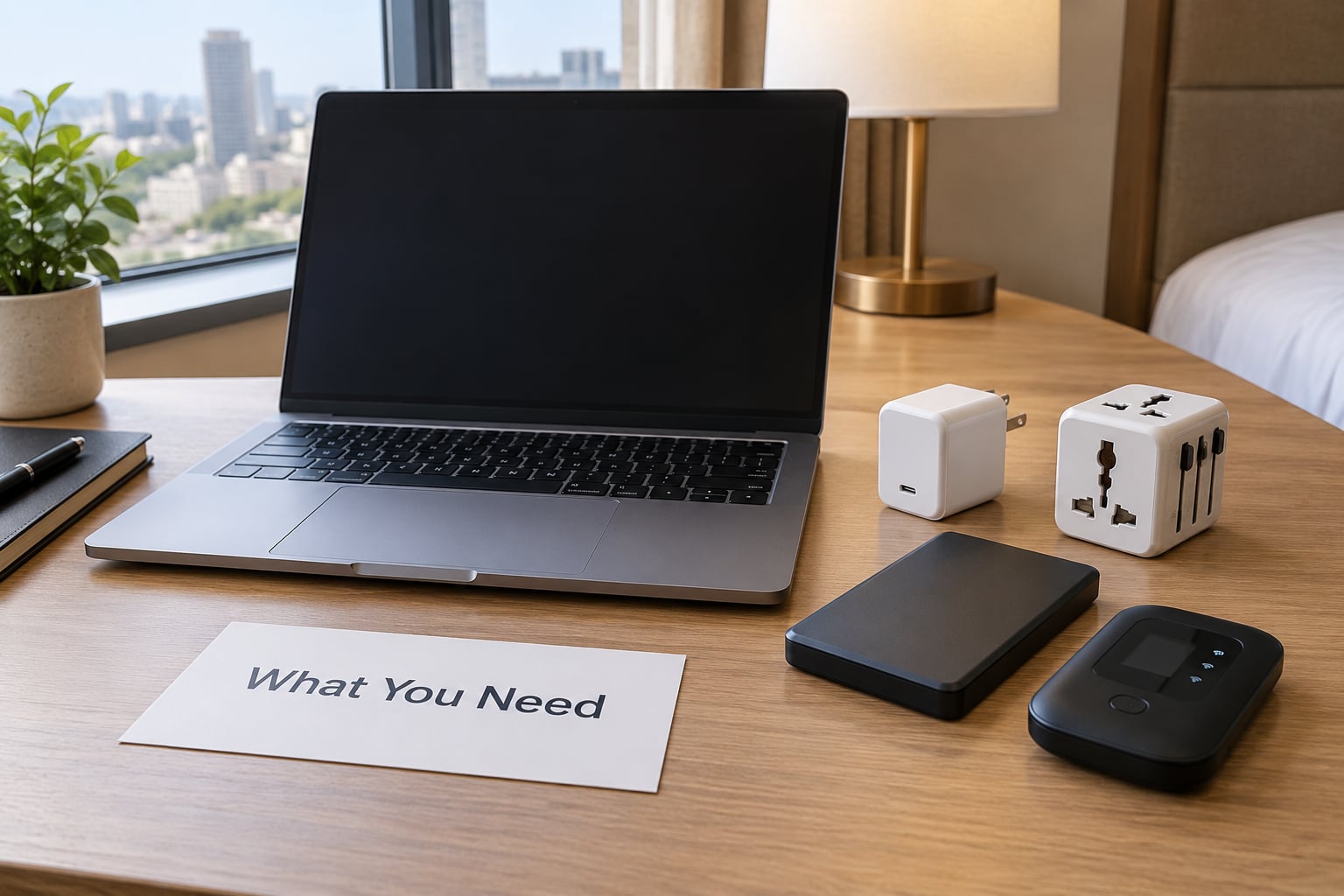
The physical kit is smaller than most people expect. Nine items cover almost every trip, and five of them cost less than a dinner.
- Laptop and charger — the charger matters as much as the laptop. Bring the compact brick, not the long cable, plus a second short USB-C cable.
- Universal plug adapter — a single adapter that covers the common two- and three-pin styles saves you from hunting sockets at midnight.
- Compact surge protector — worth the weight in countries where hotel power is unreliable. A fried laptop is a ruined trip.
- Hotspot or verified backup connection — your second and third lines of defence, not your first.
- VPN — install and sign in before you leave home so the credentials are already saved.
- Password manager — you will not remember the admin password for your work VPN at 1 a.m. in an unfamiliar city.
- Portable encrypted storage — a small external SSD for local backups and files you don’t want on the laptop.
- Noise-cancelling headset — non-negotiable if anyone on your team expects you to join calls from a train or a busy cafe.
- Employer paperwork — written approval for remote work abroad, and any travel policy your company requires.
Step-by-Step: A Remote-Work Travel System That Works
These seven steps run in order. Do them once and the trip itself becomes mostly ordinary.
1. Audit Your Work and Backup Plan
Start by sorting your tasks into two piles: the ones that need a connection and the ones that do not. Writing, editing documents, design work, and code reviews on a local repository can all survive a dead network. Video calls, cloud document editing, and anything that touches a shared database cannot.
Then ask your employer, in writing, what is permitted abroad. Plenty of corporate IT teams block sign-ins from unfamiliar IP ranges, which means a clean answer now and a locked account later. Removing access you do not need on a long trip also shrinks what a lost device exposes.
Build two backups: an encrypted local copy on the SSD, and an encrypted cloud sync. Then test a restore. Pick a file, delete it from both places, and pull it back. A backup you have never restored is a wish, not a plan.
2. Prepare Your Laptop for Border Checks and Flight Use
Install every pending update and confirm full-disk encryption is on. On macOS that is FileVault under Privacy and Security; on Windows it is BitLocker under Device Encryption. Set the screen lock to a short timeout, and store a recovery key in your password manager rather than in a note on the desktop.
Check the airline’s rules before you pack. Nearly every carrier now requires lithium batteries and power banks to travel in cabin baggage, and many cap the capacity of a portable battery. Overhead or under-seat space is the usual requirement, so a battery in a checked bag can end up in a different country without you.
For customs, keep the laptop in your hand luggage if you can. Officers in some countries ask to see work devices when they suspect paid activity, and the conversation goes faster when the device is powered on with a clean screen rather than buried in a bag.
3. Build Redundant Internet and Power Options
Never plan around one network. The layers worth having:
- Hotel or apartment Wi-Fi — convenient, and frequently shared with half the building. Useful, not dependable.
- Phone hotspot — the fastest rescue. Most carriers cap hotspot speeds, so check yours before you depend on it.
- Travel eSIM — cheap local data in the country you are actually in, and many providers offer multi-country plans that survive a change of plans.
- Coworking space or library — the reliable fallback for a call that matters. Many libraries offer a day pass with a desk and a wired connection.
Estimate your monthly data before buying anything. Everyday browsing, email, and document work runs well under a gigabyte an hour; video calls burn several gigabytes on high-quality settings. Download offline maps before you land, keep a laptop or phone backup for photos, and confirm your roaming terms rather than assuming. Run a speed test as soon as you connect, and again when it matters.
For power, carry the charger, the universal adapter, a short surge protector, and one power bank that meets your airline’s capacity limit. Charge to full during every stop rather than running to empty between them.
4. Protect Your Device and Accounts
Assume any network you join in a hotel, airport, or cafe is untrusted. Turn on your VPN before you open anything else, and if the VPN won’t connect, use your phone hotspot instead of continuing unencrypted.
Enable multifactor authentication on your work accounts and your password manager, and store the recovery codes somewhere other than the device. Skip public USB charging ports; carry your own wall adapter and cable instead.
Keep work and personal browsing in separate browser profiles, and turn off notification previews so client names do not appear on a lock screen in a shared room. On a company laptop, do not install anything without asking IT first.
Corporate employees sometimes use a travel router so their device appears on a familiar network. That solves some sign-in blocks, but it does not make you compliant with a policy that prohibits work from certain countries. Ask before you travel, not after you are locked out.
5. Set Up a Portable Workstation
A laptop on a café table will wreck your back over a long trip. The minimum fix is small: a foldable stand that lifts the screen, a compact external keyboard, and a mouse. That combination takes up about the space of a paperback and removes most of the neck and wrist strain.
Add a headset for calls and a small light that clips to the laptop if you work at night. A 1080p portable monitor helps if you do design or spreadsheet work, though it only earns its weight if you will use it more than a couple of hours at a stretch.
Know where you will work before you arrive. Airports are fine for email and terrible for calls. Coworking spaces give you a door, quiet, and often a better chair. Cafes work well for writing, poorly for confidential conversations. Book a day pass the day before rather than gambling on a noisy table.
6. Test the Complete Setup Before Departure
Run one two-hour rehearsal on the same network you will use at home. Join a timed call with a colleague and share your screen. Open the files you need for a normal day. Then turn the Wi-Fi off mid-call and switch to your hotspot so you know the failover works.
Next, test the boring parts. Put the laptop to sleep for ten minutes and wake it on a weak connection. Confirm the VPN reconnects on its own. Restore one file from your backup. Charge from empty to full with the adapter and power bank you are actually packing, not the ones at home.
Any failure you find here is a cheap fix. The same failure discovered in an unfamiliar city at an inconvenient hour is the whole problem.
7. Work Safely During the Trip
A workable daily routine is short. Check connection quality and time zone at the start of your day. Work from a seated position with the screen at eye level, and take a real break every hour rather than scrolling at your desk. Keep the laptop with you or in a locked safe, never in an unlocked hotel safe.
Send a short message to your team when your availability changes. A quick note that your connection is unreliable for the next hour prevents more frustration than any technical fix. Back up at the end of each working day, and keep transfers to encrypted services rather than consumer file-sharing sites your employer has restricted.
Watch the days-in-country count as you move. The Schengen area’s 90 days in any 180-day window is the rule most travellers meet first, and many remote workers also trigger tax residency questions by staying put longer than expected.
Common Mistakes
Almost every bad trip traces back to one of these.
- Relying on hotel Wi-Fi alone. Fix: get a hotspot or eSIM before departure and test it once.
- Battery anxiety. Fix: charge at every stop and carry a power bank within your airline’s limit.
- Carrying an unencrypted device. Fix: turn on full-disk encryption and store the recovery key outside the laptop.
- Using public USB charging. Fix: bring your own wall adapter.
- Failing to declare work equipment. Fix: check the destination’s customs rules for laptops and accessories before you fly.
- Poor call audio. Fix: a headset and a quiet room, tested in advance.
- Ignoring time zones. Fix: set your working hours once, put them in writing, and protect them.
- Never testing a backup. Fix: restore one file before you leave, not on the road.
Two habits cover most of the rest: stay a minimum of two weeks in each location before moving on, and treat the first day in a new country as setup time rather than working time. Rushing the first morning creates the schedule problems that fill the rest of the week.
Frequently Asked Questions
Can I take my work laptop on an international flight?
Yes, in almost every case. Laptops belong in your cabin baggage rather than a checked bag, since checked luggage can be delayed, damaged, or opened. Airlines require lithium batteries and power banks in the cabin, and many cap the power bank capacity, usually at 100Wh. Confirm the rule on your airline’s site before you pack, keep the laptop in its sleeve, and arrive early if you are checking a bag with electronics inside it.
Will customs ask to see my laptop?
Sometimes, and more often when you are staying in one country for weeks rather than passing through. Officers may ask about the type of device and what you use it for, particularly where paid work on a tourist visa raises questions. Keep the device powered on with a clean screen so you can answer quickly, carry a letter from your employer if you are working abroad long-term, and check the destination’s customs rules for declaration thresholds before you arrive.
Can I use a hotel Wi-Fi network to work?
You can, but treat it as unreliable and assume other people are watching the same access point. Turn on your VPN before opening anything, avoid sensitive work on a shared machine, and never use a network you cannot identify. For calls that matter, a coworking space or library with a wired connection is far better. Ask the front desk for the network name before connecting, since guests and staff devices often share the same connection.
How much mobile data does remote work use?
A normal working hour of email, documents, and browsing uses well under a gigabyte, while an hour of high-quality video calls can use several gigabytes. Heavy file uploads and cloud editing push it higher. Check your carrier’s hotspot cap before you rely on tethering, and buy data in the country you are in rather than paying roaming rates. Run a speed test after you land so you know what your connection can actually handle.
Should I work remotely from another country for tax or employment reasons?
Ask before you go, not after. Your employment contract may restrict where you work, and spending enough days in one country can make you tax resident there even on a tourist visa. The Schengen 90-in-180-days rule is separate and counts days across the whole area. Rules differ by country and change often, so treat this as a question for a qualified tax adviser and your employer’s HR team rather than relying on general advice.
Conclusion
Start with the part most people skip. Confirm in writing what your employer allows, restore a file from an encrypted backup to prove it works, and arrange a second connection so you are never dependent on one hotel network. Then rehearse the whole setup for two hours at home.
After that, how to travel with a laptop and work remotely is mostly repetition: same kit, same routine, same check-in at the start of each day. The travellers who manage it well are not better organised than anyone else. They just removed the ways for a bad day to happen. Updated for 2026.