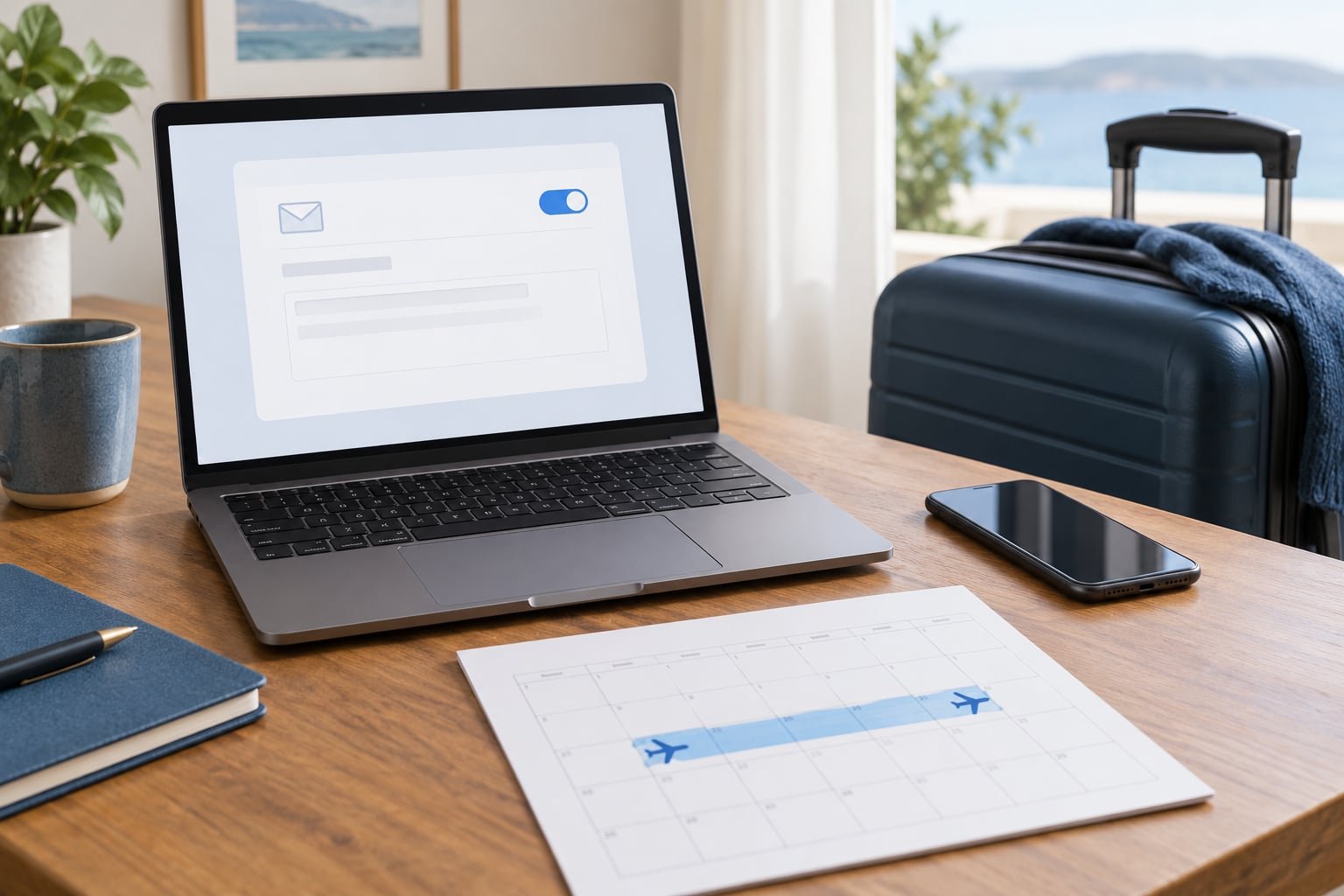
Learning how to set up an out of office before a trip takes about 15 minutes once you know where the setting lives. You write one short message, schedule it with your real start and return dates, set your chat status and calendar, then send yourself a test reply from a second account. That is the whole job. The rest is just tidying up so nothing important sits unanswered while you are gone.
The reason to schedule it before you leave rather than after you land is timing. Your flight, your time zone and your inbox do not line up, so an auto-reply set once you arrive can leave a six-hour gap where nobody knew you were away. Schedule it in advance and it turns itself on and off without you thinking about it.
Below is the version I use for both work trips and family travel: dates first, message second, platform paths third, then a test send from an address that is not my own. If you only copy one thing from this page, copy the seven-step process.
Table of Contents
- What You Need
- Step-by-Step: How to Set Up an Out of Office Before a Trip
- Plan the dates and coverage
- Write a short, useful out-of-office message
- How to set up an out of office across your tools
- Update calendars and meeting availability
- Set team and messaging coverage
- Protect files and arrange an emergency handoff
- Test the setup from a second identity
- Common Mistakes
- Frequently Asked Questions
- Should I mention my destination on an out-of-office message?
- How early should I set an out-of-office reply before traveling?
- Do Microsoft Teams and Slack need separate out-of-office settings?
- What if I work across multiple email accounts?
- Should I turn off work notifications during the entire trip?
- Conclusion
What You Need
You need five things before you open any settings. Anything missing here will show up as a gap in your auto-reply later.
- Your exact trip dates including the travel days either side of the trip itself, written down. Not “next week” — actual dates, because senders remember the date you gave them.
- Your leave status, so the message matches what your employer or client expects. An approved vacation reads differently from a business trip, and a client-billable trip usually needs no personal detail at all.
- A primary backup contact with their name, role and email address, who has actually agreed to cover. Ask them first. People decline surprise requests from auto-replies.
- An emergency contact separate from the backup, for colleagues who need a human on day one of a real problem rather than a mail-forwarded question.
- Access to the tools that send replies: your desktop or web mail, the mobile apps, your chat client, and your calendar.
If your work phone is company-issued, check whether the automatic reply setting is locked by your organisation’s mail policy. Some managed accounts hide the toggle entirely, and you will need IT to set the rule for you.
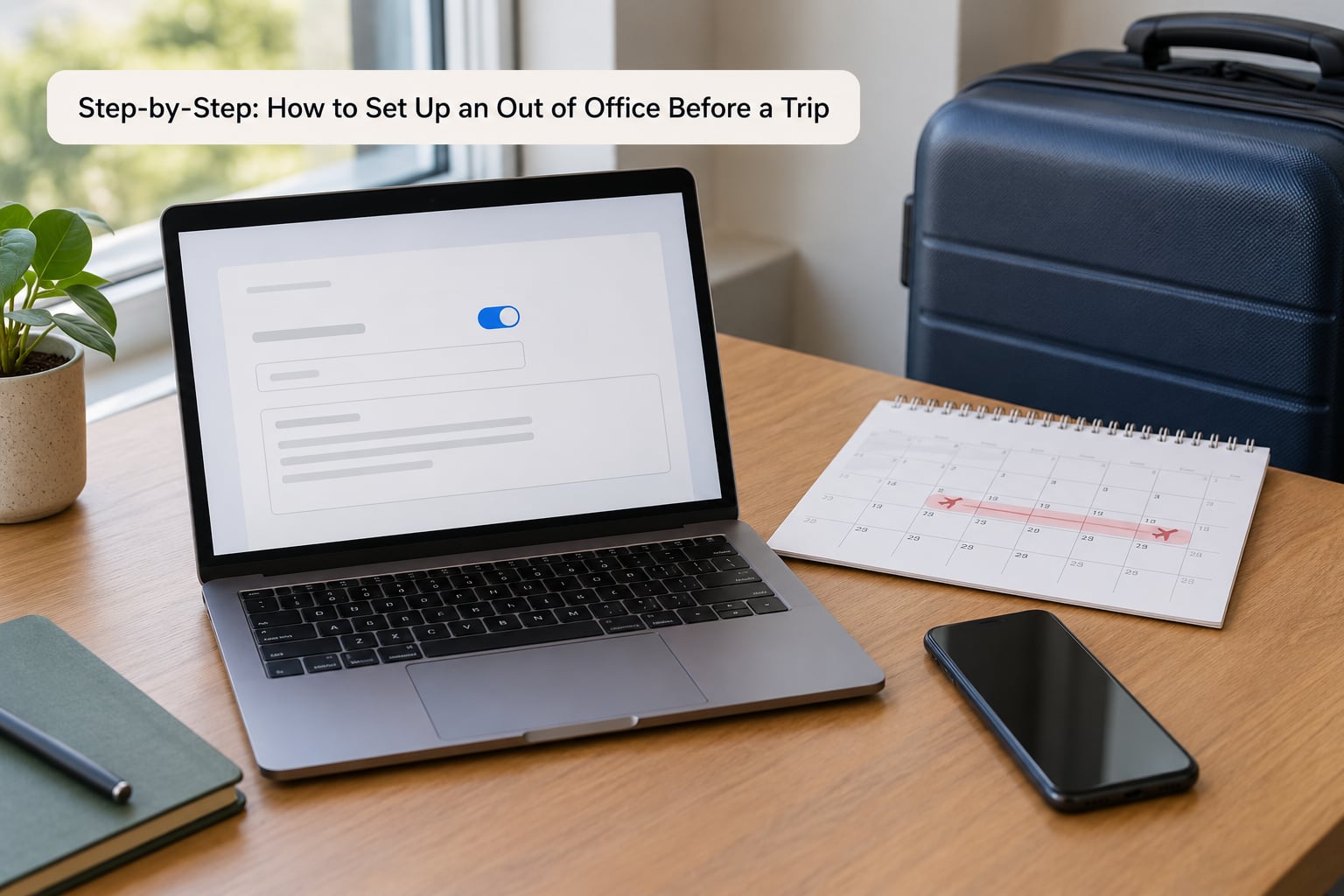
Step-by-Step: How to Set Up an Out of Office Before a Trip
Plan the dates and coverage
Confirm the leave is approved, then write down the away window in calendar time, not your head. If you fly from Boston to Lisbon and land eight hours later on the calendar, decide now whether your message starts at departure or at takeoff.
Work out which time zone your senders are in. For an international trip, tell people which hours you will actually be reachable after landing, and give the backup contact the timezone so they are not guessing at midnight. Make sure the plan covers the return day too, not just the flight out.
Write a short, useful out-of-office message
Keep it under 60 words. Readers want three things: that you are away, when you are back, and who to ask instead. The reason for the trip is optional and usually best left out.
A workable internal version:
Hi — I’m out of the office from [start date] to [return date] and traveling with limited access to email. I won’t see messages until I’m back on [return date]. For anything urgent, [Backup Name] ([role]) at [email] is covering. For project updates, the shared status doc is current.
An external version for clients drops the internal shorthand and adds a boundary sentence: “I respond to messages after I return on [return date].” Give senders an expectation you can actually keep — people extend deadlines when a reply arrives on the promised day, and chase you when it does not.
How to set up an out of office across your tools
In Gmail, open Settings from the gear icon, choose General, scroll to the Vacation responder section, and turn it on. Paste your internal message in the first box and your external message in the second — Gmail keeps them separate automatically. Tick “Send only to people in my contacts” if you would rather newsletters got silence. Set “Starts at” and “Ends at” with the date and time, and leave “Auto-reply once a week” off unless a long trip makes it useful.
In Outlook, the path depends on version. New Outlook and Outlook on the web use Settings, Mail, Automatic replies. Classic Outlook on Windows uses File, Automatic Replies. Outlook for Mac uses Tools, Accounts, Automatic Replies. Under that panel, “Send replies only during a time period” is where your dates go, and the “Outside my organization” box is where the external version lives. On Microsoft 365 the toggle appears on the ribbon as Automatic Replies.
On mobile, Outlook for iOS and Android use the profile picture or hamburger menu, then Automatic Replies, with the same dates and separate boxes. Apple Mail on macOS uses Mail, Preferences, Accounts, select your mailbox, Composition, then “Automatic reply” with “Out of office” and “for 10 days.” On iPhone and iPad it is Settings, Apps, Mail, Account, Sign Off, then “Set Automatically.” Set a start and end rather than leaving it open-ended, or it keeps replying after you are home.
Check how it worked: send yourself a message, confirm the reply text and dates match, then open one sent from a different account to confirm that the sender sees the right version.
Update calendars and meeting availability
Mark the trip as out of office on your calendar for every day away, including the travel days, then block the travel hours themselves so nobody books you into a call while you are in the air. Decline recurring meetings with a short note that gives a return date rather than a vague delay.
Calendar details differ by setting and by what you choose to show. Out-of-office status on your own calendar is visible to anyone who looks at it. The title and notes of individual events are visible to invitees only, and anything you mark private stays private — so put the trip location in the private field if you travel for work.
Set team and messaging coverage
Chat status needs setting separately from email; neither Slack nor Teams reads your mail settings. In Slack, set your status to away with an automatic expiry if you use one, and add a note about coverage. In Teams, set status and availability to show as away or do not disturb, and use message delegation in settings so colleagues know where urgent items should go.
Shared inboxes and project boards are where coverage usually fails, because nobody gets an auto-reply there. Add yourself out as an assignee on open tickets, note who is picking them up, and set a voicemail message that matches your email rather than the greeting you recorded the last time someone went on leave.
Protect files and arrange an emergency handoff
Transfer ownership of shared documents, recurring calendar events you own and any inbox rules that point at you, before the trip not after. A shared drive full of locked files is the classic version of this problem.
Give people the minimum trip information they need to run things: how to reach the backup, where urgent decisions get documented, and when you expect to be reachable. You do not owe anyone your location, and on public or shared Wi-Fi, use a VPN rather than working through hotel or airport networks as a habit.
Test the setup from a second identity
This is the step most people skip. Send a test message from another account — a personal address, a secondary work alias, or ask a colleague to send one — and read the reply as a stranger would. You are checking four things: the dates, the return date, the links and addresses in the message, and whether the alternative contact is someone who agreed to it.
If a link in the reply is broken or points at a calendar invite, fix it before you fly. Then put the backup contact’s name and how to reach them in a channel your colleagues actually read, so the coverage is documented somewhere other than in your out-of-office message.
Common Mistakes
Leaving the end date empty. An auto-reply with no expiry keeps answering after you return, and people quietly route around you. Always set an end date, even if you plan to extend it.
Replying to every newsletter, ad and mailing list. This is the most common complaint from people who travel with auto-replies switched on, and it burns your sending reputation. In Gmail use the contacts-only option; in Outlook, leave “Outside my organization” unticked unless you want outside senders answered too.
Saying “will respond shortly” and then not doing it. That phrasing invites follow-ups on day two of a two-week trip. State the actual date you will reply, and be vague about everything else.
Over-sharing the location or the reason. Extended dates plus a specific destination advertise an empty house. A date range and “traveling” is enough for almost everyone.
Forgetting the second inbox. A personal address used for work calendars, a shared team address, or an old account that still receives client mail will keep you reachable. Check which addresses actually receive messages.
Setting only the desktop app. Mail clients can sync, but many managed phones have their own automatic reply settings and dates. Set the mobile app separately before you leave.
Never testing it. Scheduled replies fail in predictable ways: wrong time zone, wrong end date, a broken signature block, a backup contact who declined. One test send catches all four.
Two habits cover most of these. Set the auto-reply the evening before departure rather than at the airport, and add a calendar reminder on your return date to confirm the reply switched itself off.
Frequently Asked Questions
Should I mention my destination on an out-of-office message?
Usually no. A return date, a short reason such as traveling, and a named backup contact give senders everything they need. Naming the country or city adds detail most senders will not use, and combining exact dates with a location tells anyone paying attention that a specific place is unattended. If the trip is public anyway, or a conference invitation means colleagues should know where to find you, naming it is fine.
How early should I set an out-of-office reply before traveling?
Set it the evening before departure. The reply needs to be running before you board, not after you land, because landing time depends on time zone and connection delays. Scheduling it a day ahead also leaves room to test the message from a second account and to fix anything wrong. For a trip where coverage changes on the way, schedule the automatic reply but set your chat status manually on landing.
Do Microsoft Teams and Slack need separate out-of-office settings?
Yes. Neither Teams nor Slack reads your email automatic reply settings, so your chat status stays available unless you change it yourself. In Slack, set a status with an automatic expiry and a note about coverage. In Teams, set your status and availability, and turn on message delegation so colleagues know where urgent items go. Voicemail is a third setting that needs its own pass before you fly.
What if I work across multiple email accounts?
Set the reply on every address that actually receives work mail, and check each one separately because settings are per-account. A personal address used for calendar invites and an old account that still gets client mail are the usual misses. Send a test message to each address from an outside account so you can see exactly what a sender receives, and make sure the dates match in every one of them.
Should I turn off work notifications during the entire trip?
Yes for the trip itself, and treat it as a boundary rather than a delay. Notifications on a phone in another time zone turn into off-hours interruptions that pull you back into work, which is exactly what the out-of-office message is meant to prevent. If you genuinely need one check-in, schedule it for a specific time when you are awake locally, disable everything else, and tell your backup contact about the one window so nobody escalates to you.
Conclusion
Start with the dates and the coverage, because everything else depends on them. Write the message next, schedule it with a start and an end, and set your calendar and chat status to match.
Then do the part everyone skips: send a test reply from a second account the evening before you fly. Fifteen minutes of setup and one test send is what keeps an out of office from turning into a week of unanswered messages.