Yes — a translation app can work with no internet connection at all, as long as you download the language pack before you leave home. That downloaded pack stores a translation model on your phone, so typed text, camera translation and, on some apps, voice input keep working when Wi-Fi and mobile data are off. Learning how to use offline translation apps takes about fifteen minutes per language, and it is the difference between ordering lunch and standing outside a closed ticket office.
The failure always happens the same way: someone lands, opens the app, and finds it needs a connection to do the one thing they downloaded it for. So this guide walks through the whole sequence, from picking an app to a five-minute test you can run in airplane mode the night before your flight.
Table of Contents
- What You Need
- What “offline” actually means
- Step-by-Step
- Step 1: Choose an App for Your Device
- Step 2: Download the Languages You Will Need
- Step 3: Turn On Offline Mode and Check Permissions
- Step 4: Test Basic Travel Phrases
- Step 5: Use Camera and Conversation Modes
- Step 6: Save and Reuse Essential Phrases
- Common Mistakes
- Downloading only the destination language
- Testing while you still have a connection
- Interrupting a download
- Reading a camera failure as a translation failure
- Forgetting the paid-plan wall
- Relying on one app alone
- Frequently Asked Questions
- Can a translation app work without internet?
- Can Google Translate translate offline?
- Which languages work offline?
- Can my phone translate spoken conversation offline?
- Why won’t my translation app work offline?
- How do I delete language packs and free up storage?
- Conclusion
What You Need
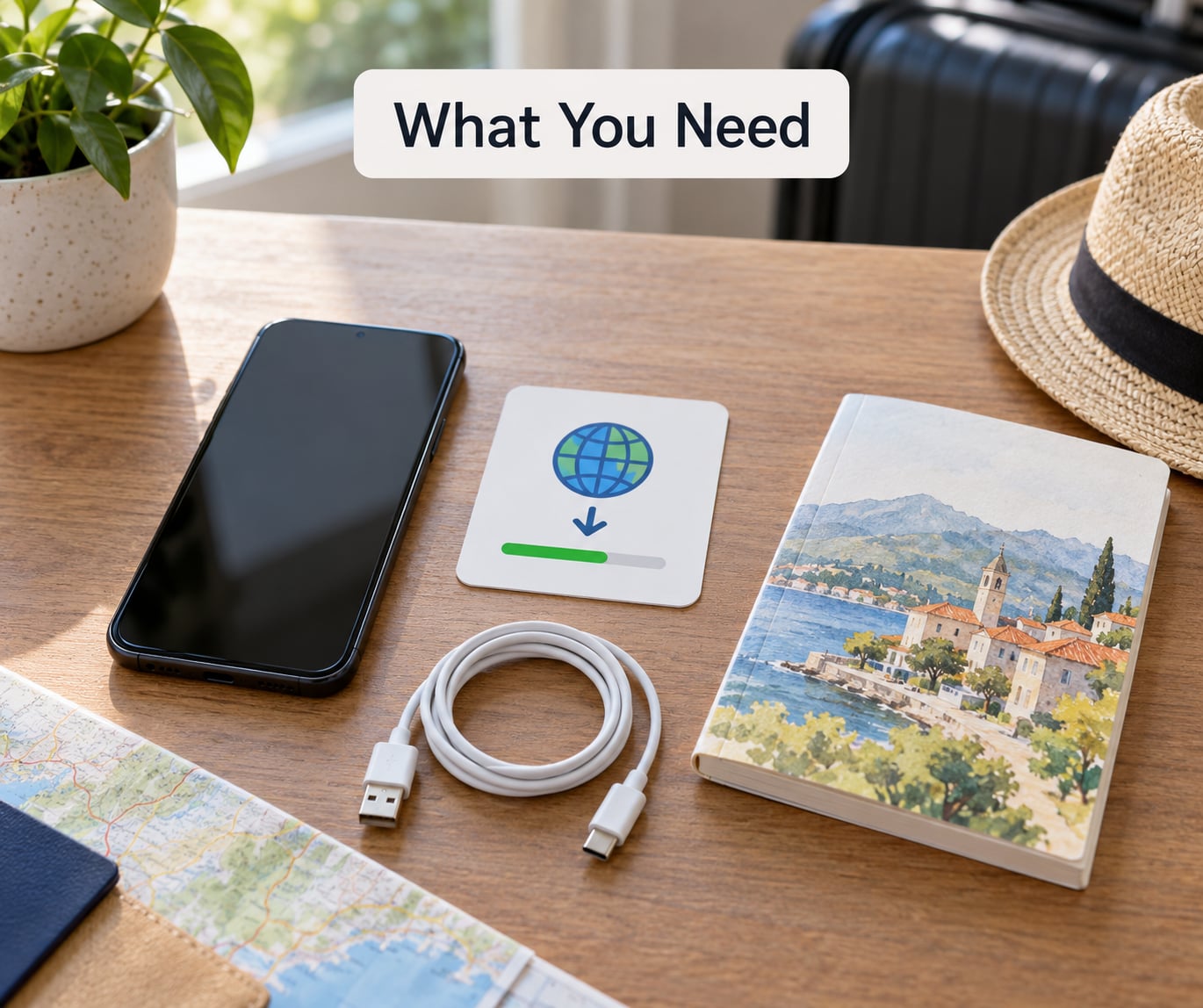
Four things, and three of them are free.
- A smartphone with a few hundred megabytes free. Language packs range from roughly 30 MB for a common European language to a few hundred MB for major East and Southeast Asian scripts. Check your storage before downloading, not after.
- A translation app that supports offline mode on your platform. Nearly all of the major ones do now, but the menu labels differ between iPhone, Android and desktop, and they move between versions.
- A language pack for both sides of the pair. You need the destination language and the language you already speak. Most people download one and forget the other, then discover it in a queue in Kyoto.
- A charger or power bank. Camera translation and conversation mode chew through a battery faster than plain text translation.
A paper phrasebook is not a leftover from a previous decade. It works when the phone is flat, dead, or locked by a stranger who will not unlock it — a real situation on trains in several countries.
What “offline” actually means
When you download a language pack, the app stores a language-specific neural model directly on your device. From then on the translation runs locally instead of being sent to a server. Anything the pack does not cover still tries to reach the internet, which is why some features work offline and others quietly fail. Availability and accuracy are also two different things: a phrase may translate fine offline and still be a clumsy sentence.
One practical note before you go further. Menu paths here were checked in October 2026, but app interfaces change. If a label on your phone differs from what I describe, look for the same idea rather than the same words — settings gear icon, then a language or offline section.
Step-by-Step
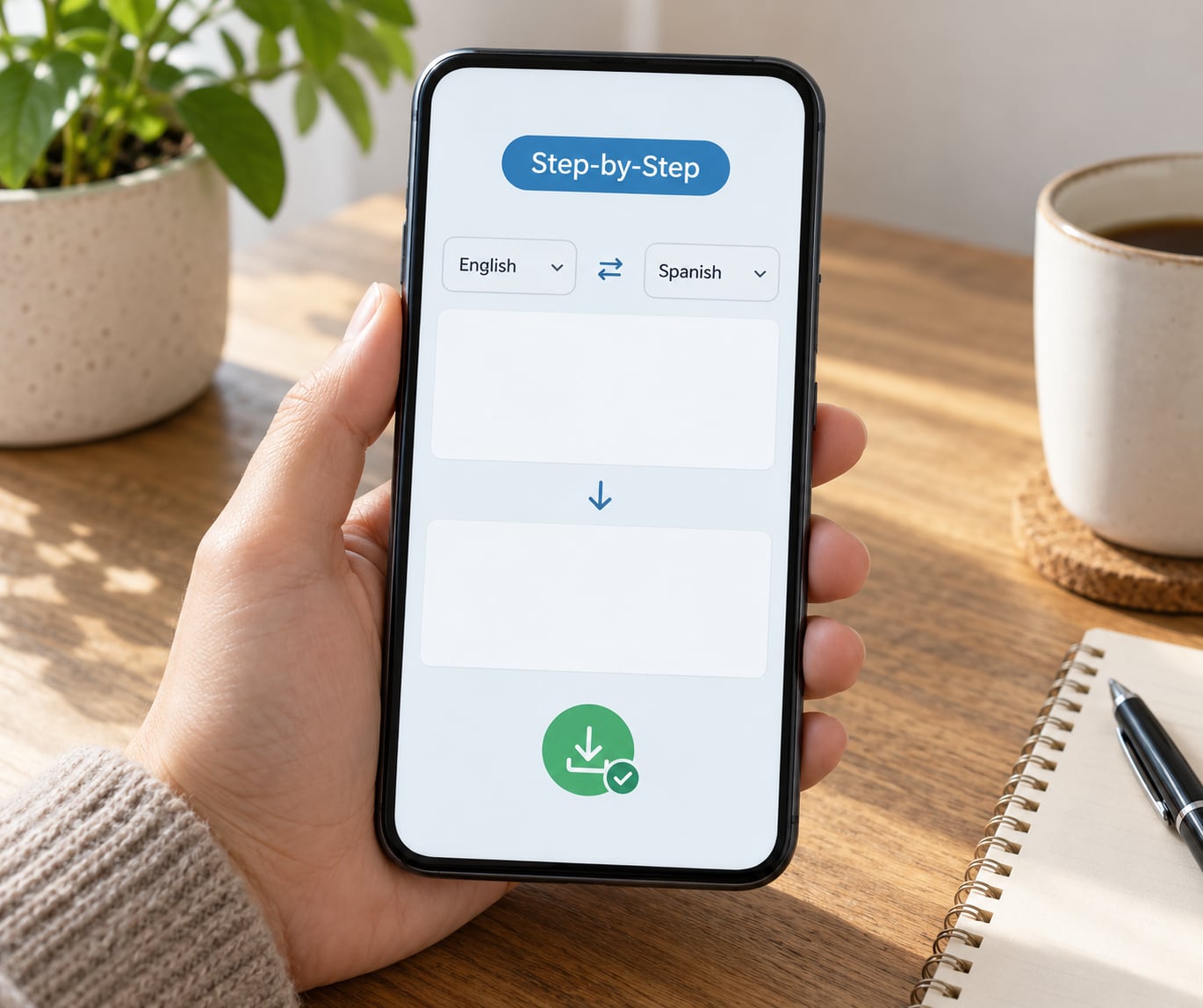
Work through these six steps in order, on reliable Wi-Fi, before you pack. Each one has a clear signal that it worked, and I have put the check right after the action so you do not have to guess.
Step 1: Choose an App for Your Device
Look for offline language downloads first, then check the rest of the feature list against how you actually travel.
- Offline language packs — the dealmaker. Confirm the app supports your destination language offline, not just in theory.
- Camera translation — for restaurant menus, street signs, and labels. On many apps this is the single most-used feature on a trip.
- Conversation mode — a split screen where each person speaks in turn. Useful at a counter or a taxi rank, weaker than a human interpreter in a real dispute.
- Text-to-speech output — lets you show a screen instead of attempting pronunciation yourself.
- Handwriting and image input — worth having for handwriting you cannot read and for pasting text from another app.
- Free versus paid offline features — this one bites people. Several apps allow offline mode only on a subscription plan. Read the offline section of the paywall before you assume it is included.
On iPhone and Android, the big names all work: Google Translate, Microsoft Translator, Apple Translate, DeepL and Papago. Apple Translate is built into the system on iPhone and needs the languages turned on in Settings before the app will offer them. Papago has a following among travellers heading to Japan, South Korea and Taiwan for its handling of those scripts. If you avoid Google services entirely, check for an app that needs no account and asks for no permissions beyond camera and microphone; travellers who de-Google their phone say an account-free option matters more to them than language count.
It worked if you can name one app that is installed on your phone right now, and you have read which of its offline features are free.
Step 2: Download the Languages You Will Need
Download both languages in the pair, and wait for the download to finish completely before you switch off Wi-Fi.
In Google Translate on Android, the path is Settings, then Offline translation, then the languages list, where a download arrow sits next to each one. On iPhone the flow is similar but reached from the side menu, where the same offline languages list appears. Microsoft Translator puts its downloads under Settings, then Offline translation. In DeepL the language settings sit behind the three-dot menu, with an option to download languages for offline use. Papago handles its offline packs inside its settings screen for language selection.
Also add the language you speak. If English is your home language and you are heading to Portugal, you need Portuguese and English packs — one of them is not optional.
Watch the download finish rather than backgrounding the app. An interrupted download is the single most common cause of an app that claims offline mode but does not have it. It worked if each language in your list shows a downloaded or ready state and your storage figure went up by a plausible amount.
Step 3: Turn On Offline Mode and Check Permissions
Enable the offline setting where the app provides one, then allow only the permissions you will actually use.
Some apps have an explicit offline switch that makes downloaded packs the default. Others just use the pack when there is no connection. Microphone permission is required for voice input and conversation mode; camera permission is required for image translation. Decline anything else, especially contacts.
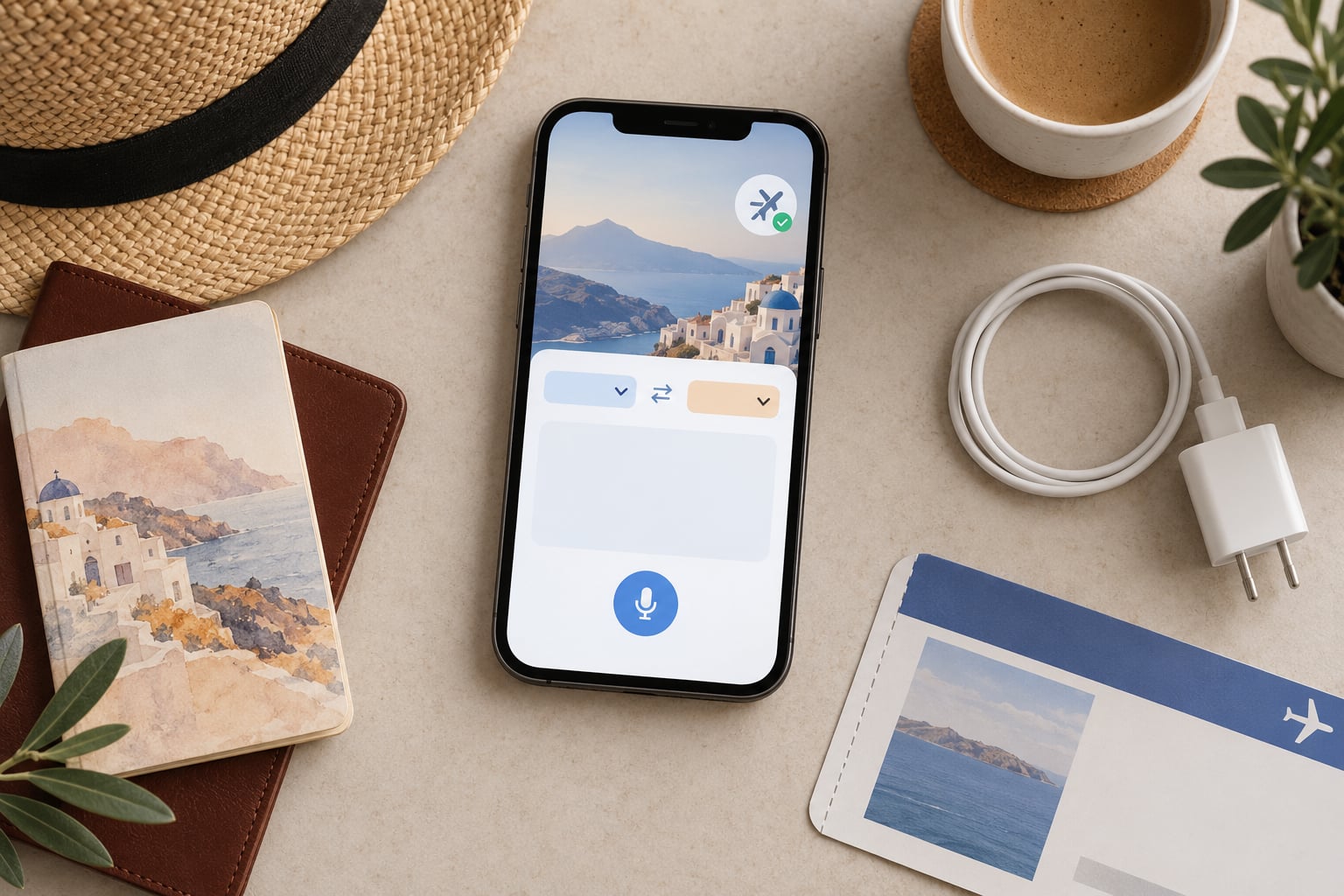
Now the useful part: switch the phone to airplane mode and confirm the app still translates. If it works with data off, your packs are genuinely installed. Switch airplane mode back off afterwards — this matters, because leaving a phone in airplane mode through a long flight is a genuinely bad surprise when the cabin lights come on.
It worked if you translated one short phrase with the radio off and got a result you could read aloud.
Step 4: Test Basic Travel Phrases
Test the phrases you will actually need, while you still have the option to fix anything broken.
- Greetings and thanks — the polite opener that changes how a conversation starts.
- Directions and distance — including the word for “how far” and for “on foot”.
- Numbers, and how prices work with them.
- Questions: “How much?”, “Do you have…?”, “Can I pay by card?”
- Emergency phrases — “I need a doctor”, “call an ambulance”, “I need a police station”.
Type them in, switch the language pair with the selector rather than guessing which side is which, and tap the speaker icon to hear the output. Misidentifying the input language is a common cause of confident nonsense.
For anything that matters, check the result a second way. Reverse it back to your own language, or compare with a second app. When a translation involves medicine, money or legal wording, treat the app as a helper rather than an authority and find a human who speaks the language. It worked if you produced a working phrase for each of the five categories above.
Step 5: Use Camera and Conversation Modes
Camera mode reads text in the world around you; conversation mode handles the person in front of you.
Camera translation is the reason most people keep a translation app installed at all. Point it at a menu, hold steady, and wait for the overlay to settle. Lighting matters more than most people expect: dim restaurants and shop windows produce confident but wrong characters, and Asian scripts suffer first because a single missing stroke changes the word. Move closer rather than zooming, keep the phone flat to the surface, and translate one line at a time on a long menu.
Conversation mode is different. It splits the screen so each side reads in the other’s language, one turn at a time. Tap the microphone, speak a short sentence, stop talking so the app knows you finished, and let the other person go. Overlapping speech confuses it badly. Remember that some apps gate conversation mode behind a paid plan, which is exactly the kind of surprise you find out about mid-negotiation.
It worked if you translated a real sign or a real spoken sentence and the result matched what was in front of you.
Step 6: Save and Reuse Essential Phrases
Build a personal list while you are calm, sorted by situation, so nothing has to be composed under pressure.
Group the phrases by category: directions and transport, accommodation check-in, food and allergies, shopping and bargaining, and emergencies. Store them in the app’s saved or favourites list where it has one. Where it does not, take screenshots — they work with no connection and no app running.
Include your hotel name in the local language, the address written out in characters, and any allergy or medical information you would need stated quickly. Remove those same details from any note you share or back up publicly, since a shared cloud note is not a private one.
It worked if you can open one screen and show a driver where you need to go.
Common Mistakes
Almost every ruined trip translation comes down to one of these six.
Downloading only the destination language
The mistake: the pack list is long and you stop when you see the one you need.
The fix: every language pair has two sides. Download the language you speak as well, and open the pair once in airplane mode to prove both directions work.
Testing while you still have a connection
The mistake: you check the app at home on Wi-Fi, feel reassured, and never retest.
The fix: airplane mode for sixty seconds. Nothing else proves the pack installed correctly.
Interrupting a download
The mistake: the app went to the background or you locked the screen mid-download.
The fix: delete the partial language from the offline list and download it again on a stable connection, ideally at home rather than on airport Wi-Fi.
Reading a camera failure as a translation failure
The mistake: the camera produced garbled text, you conclude offline translation is broken.
The fix: improve the light, hold the phone flatter and closer, and try again. Then type the same phrase to see whether the translation itself was the problem.
Forgetting the paid-plan wall
The mistake: offline mode needs a subscription in that app, and you found out on arrival.
The fix: before departure, try the exact feature you plan to use with the connection off. If it prompts for a plan, switch to a free app that does it.
Relying on one app alone
The mistake: a single translator is your only plan for the entire trip.
The fix: install a second one with different packs, and keep the screenshots from Step 6 as a floor under both.
Three habits make the rest smoother. Check translations that matter against a second source. Say only the personal details an app actually needs to function. And carry a power bank, because a phone at three percent is not a translation tool.
Frequently Asked Questions
Can a translation app work without internet?
Yes, but only after you download the language pack first. The pack stores a translation model on your phone, and the app then runs the translation locally instead of sending your text to a server. Typed text and camera translation usually work offline. Voice and conversation features work offline only in apps that support them that way, and anything the pack does not cover will still try to reach the internet and fail quietly.
Can Google Translate translate offline?
Google Translate can translate offline once you download the language. On Android, open Settings, then Offline translation, then tap the download arrow beside each language. On iPhone, the offline languages list sits in the app’s side menu. Download both languages in the pair, let each one finish, and test in airplane mode before you travel.
Which languages work offline?
The language lists change with app updates, so the honest answer is: most of them, but check your app. The major apps support offline packs for well over a hundred languages, including Spanish, French, German, Italian, Portuguese, Japanese, Korean, Chinese, Thai, Vietnamese, Arabic, Hindi and Turkish. The languages offered offline are sometimes a smaller list than the languages offered online, so confirm your destination appears before you leave home.
Can my phone translate spoken conversation offline?
On some apps, yes. Microsoft Translator and Papago both support offline voice translation, and conversation mode in several apps splits the screen so each person speaks in turn. Quality offline is a little slower and less confident than with a connection, so speak in short sentences and pause between turns. In apps where voice offline is a paid feature, you will hit a prompt at the worst possible moment unless you test it first.
Why won’t my translation app work offline?
Four causes cover most cases. The language pack was never downloaded, or the download was interrupted before it finished. The pack is there but out of date. The app needs a permission you declined, usually the microphone. Or offline mode itself is behind a paid plan in that app. Deleting the language and downloading it again fixes the first two; check Settings, then Permissions, then the app’s paid features for the rest.
How do I delete language packs and free up storage?
Go to the app’s offline or language settings, tap the language, and choose delete rather than download. In Google Translate the downloaded languages sit in one list with a bin icon beside each one. Delete the ones for past trips and keep only the languages you are about to need, plus your home language. A pack that has not been opened in a year is just taking space on your phone.
Conclusion
Working out how to use offline translation apps comes down to five things: download both languages, finish the download, allow only the permissions you need, test camera and speech with the connection off, and save a handful of essential phrases you can show someone.
Start with the first action today, while your Wi-Fi is reliable. Install the app, download the pack for your destination and for your own language, and run the airplane-mode test. Fifteen minutes now costs you nothing; the same fifteen minutes in a station hall with no signal is not an option.