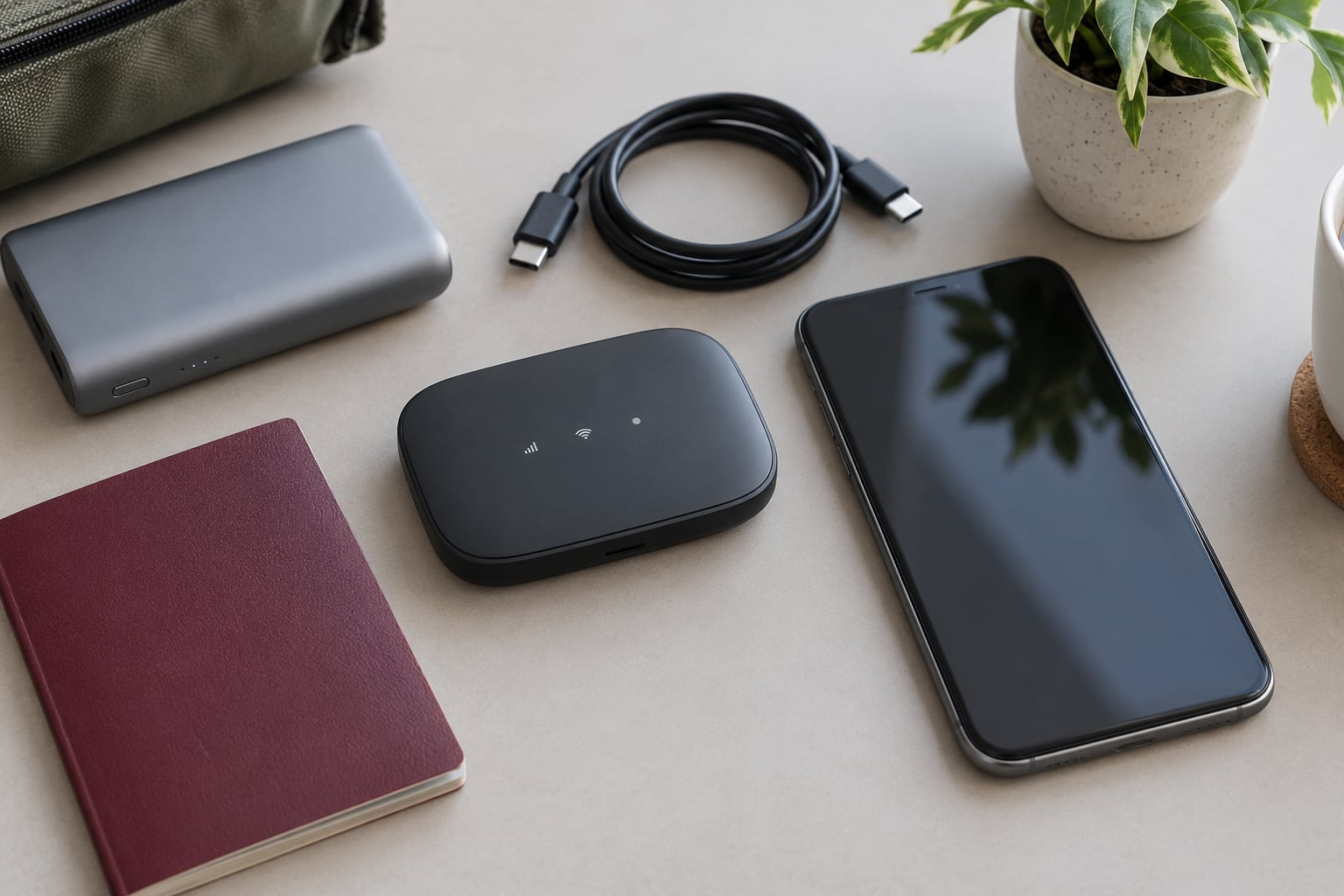
A portable Wi-Fi hotspot works abroad the same way it does at home: you power it on, join its wireless network with your phone or laptop, and get online. What changes is the data plan behind it and the settings that keep your home carrier from billing roaming rates.
Yes, you can use a hotspot in another country, provided the hardware supports the local network bands and the plan covers every country on your itinerary. Set it up and test it before you leave — about twenty minutes of work — and you get a predictable connection instead of a hunt for a SIM counter at the airport.
Table of Contents
- What You Need
- How to Use a Portable Wi-Fi Hotspot Abroad: Step by Step
- Choose a Hotspot That Works at Your Destination
- Set Up the Device Before You Leave
- Choose the Right International Data Plan
- Connect Your Phone, Tablet, or Laptop
- Use the Hotspot Reliably While Traveling
- Secure the Connection and Protect Your Data
- Common Mistakes
- Frequently Asked Questions
- Can I use a portable Wi-Fi hotspot in any country?
- Do I need an international roaming plan or a local SIM?
- How many devices can connect to one portable hotspot?
- How long does a portable hotspot battery last while traveling?
- What should I do if the hotspot has no signal abroad?
- Conclusion
What You Need
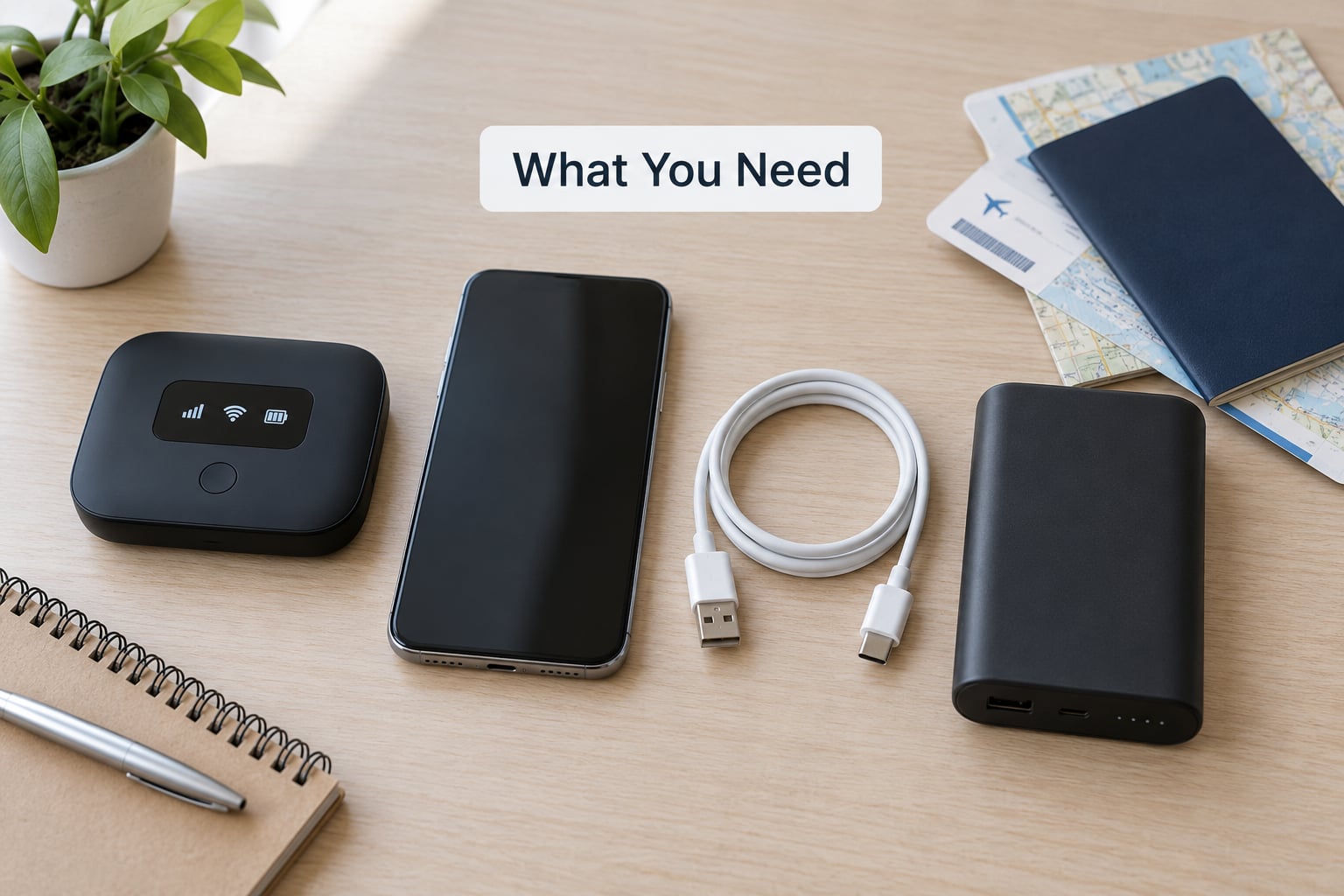
You need four things: a hotspot device, an active data plan, power for the trip, and a backup. Anything missing turns into a problem at a border crossing, which is the worst possible time to discover it.
- The device. A pocket Wi-Fi device, often called a MiFi or mobile broadband dongle, is a small battery-powered router that holds its own SIM or eSIM profile and rebroadcasts the connection as Wi-Fi. If you would rather not carry a second device, your phone can do the same job — see the step on tethering.
- An account and a data plan. Most providers run through an app where you create an account, pick a plan and activate a profile. Rentals and carrier-issued devices usually arrive with some data already on them, with a top-up option later.
- Coverage confirmation for your destinations. Check the provider’s country list and coverage map for every stop, including transit countries. A device that only lists a handful of countries will not roam past them, however good it works at home.
- Charging kit. Bring the supplied USB-C cable, a wall plug for the voltage at your destination, and a power bank. Check whether the power bank can charge the hotspot while the hotspot is broadcasting.
- A backup connection. A physical SIM or an eSIM already installed on your phone costs almost nothing to carry and saves you when coverage fails or the device runs flat.
One more thing that costs nothing: your boarding passes, address and a hotel’s phone number stored offline, plus downloaded maps. A hotspot only helps when it is working.
How to Use a Portable Wi-Fi Hotspot Abroad: Step by Step
Choose a Hotspot That Works at Your Destination
Choose a hotspot that supports the networks used at your destination. Before you buy, read the specifications rather than the marketing: which frequency bands does the modem support, is the device carrier-locked, and how many countries does the plan cover.
Band support is the part people skip. A hotspot bought from a home carrier may only support domestic radio bands, which means it will search forever and never register abroad. The country list matters just as much — plenty of travel plans cover thirty or forty countries and nothing beyond them, and your itinerary may cross a border they do not include.
Check the coverage map for the specific countries, and look for reviews of real speeds in cities and rural areas rather than advertised peak numbers. Mid double-digit megabits per second is what travellers usually report in practice, which is comfortable for maps, messaging, browsing and video calls, and thin for heavy streaming.
Set Up the Device Before You Leave
Set the device up at home, where you have Wi-Fi and time to fix problems. Charge it fully, install the provider’s app on your phone, and sign in.
Next, add the data source. Physical SIM cards go into the slot, with the gold contacts facing the same direction as the moulded guide. eSIM-based hotspots download a network profile through the app or a QR code, which is usually a two-minute job once the device is on a trusted connection.
Update the firmware if the app offers it, and note the default network name and password printed on the label or shown in the app. If the provider supplies APN settings — the network configuration your device needs to reach the internet — enter them now rather than in a border queue. Finally, check the device switches on and holds a signal where you are: seeing full signal bars at home confirms the hardware and the profile both work.
Choose the Right International Data Plan
Choose a plan that matches how long you are away and how many devices you carry. There are two families, and the difference matters.
A roaming plan rides on your home carrier and just works when you land, which is the least effort. A local plan — a travel SIM, an eSIM, or a data-only SIM inserted into the hotspot — uses the local network directly and usually costs less per day, especially on trips longer than a week.
Whichever you pick, read four clauses before paying. How much data is included, how long the plan stays valid after activation, what happens when you pass the allowance, and whether tethering or hotspot sharing is permitted at all. Plans labelled unlimited are nearly always a fair-use policy: a high-speed allowance, then slower speeds. Ask what the threshold is and what speed follows it, because a cap nobody states clearly is how travellers end up with a connection that suddenly crawls.
Also confirm whether the plan’s validity window is counted in days from activation or calendar days from purchase, and whether activation happens automatically on your departure date or the moment the device first connects abroad.
Connect Your Phone, Tablet, or Laptop
Connect your device to the hotspot by selecting its network name from your device’s Wi-Fi list and entering the password. On a phone, open Wi-Fi settings, pick the network, type the password, and confirm the icon shows connected.
On Windows, click the network icon in the taskbar, choose the hotspot from the list, enter the password, and tick the box that connects automatically. On iOS and Android the steps are shorter, and most provider apps offer a QR code that handles the whole thing in one scan.
Success check: open a web page. A joined network with no internet means the hotspot has signal but no working data, which is a plan or APN problem rather than a Wi-Fi problem. A connected laptop that refuses to load anything may also be routing traffic through a work VPN, which is worth checking before you assume the hotspot is broken.
If you plan to share the connection from your phone instead of a dedicated device, the paths differ by platform. On iPhone: Settings, then Cellular, then Personal Hotspot, and switch Allow Others to Join on. On Android: Settings, then Network & internet, then Hotspot & tethering, then Wi-Fi hotspot. Check Allow Cellular Data Switching, or Allow Other Devices to Connect, so tethered devices use the travel data rather than your home allowance.
Use the Hotspot Reliably While Traveling
Use the hotspot reliably by keeping the device powered, in reach and off your phone’s Wi-Fi list when idle. Carry it, rather than checking it into a bag that goes in a hold — devices are fine in hand luggage as long as cellular service stays switched off in flight.
Battery is the usual failure point. Fewer connected devices and a 4G device on a good signal run considerably longer than a 5G unit driving two laptops. If you turn on power bank mode to charge your phone from the hotspot, expect the charge to be slow and the hotspot’s own runtime to shorten, and expect some devices to drop while it switches modes.
Hotel rooms and rental cars have their own problems. Thick walls and foil-backed windows cut signal badly, so place the hotspot near a window rather than in a drawer. In a car, keep it visible and high up rather than buried in a boot or centre console.
If a connection drops mid-day, toggle airplane mode on and off, or power cycle the device. That single step fixes a surprising share of failures, because it forces the modem to re-register on the network.
Secure the Connection and Protect Your Data
Secure the hotspot the way you would secure a home router, because everything you do travels over it. Change the default network name and password from the app or the device’s settings page, and use WPA2 or WPA3 encryption.
Turn off WPS, the button that lets a nearby device join without a password, and keep firmware updates installed. A shared password printed on a sticker in somebody else’s flat is a genuine risk.
Treat the connection as a private network rather than public Wi-Fi. Use it for banking, work logins and anything involving passwords, and run a VPN when you must connect through hotel or café networks you did not control. If you have to fall back on public Wi-Fi, avoid anything financial until you are back on your own connection.
Common Mistakes
The most common mistakes fall into predictable groups: hardware bought too late, plans misread, settings left at defaults, and dead zones nobody anticipated.
- Buying the device on the way to the airport. Coverage is checked after purchase, never before. Fix: confirm the country list and band support before you pay.
- Treating unlimited as unlimited. Fair-use thresholds are common and the wording is often vague. Fix: find the high-speed allowance number and what speed applies afterwards.
- Forgetting the activation date. Many plans start counting days the moment the device first connects, and a test connection at home can burn a day of validity. Fix: note the activation rule in writing before you insert the SIM.
- Leaving data roaming on the home line. The hotspot is on a travel plan, but your phone’s own cellular line is still one tap away from racking up roaming charges. Fix: turn off data roaming before boarding, and confirm the setting afterwards in airplane mode.
- Expecting one connection everywhere. Rural areas, mountains, tunnels and some remote islands simply have little coverage. Fix: keep a backup SIM or eSIM on your phone and download maps before you leave.
- Not watching data usage. Most apps have a usage meter, and the limit is easier to respect while you still control it. Fix: check the counter at the start of each day and warn the family sharing the connection.
- Never testing the setup before departure. A failed activation in an airport queue is entirely avoidable. Fix: turn everything on at home, join the network, load a page, then power down.
- Using the hotspot to charge a phone while tethering. Power bank mode shortens runtime and can drop connected devices. Fix: charge devices overnight from the wall and carry the hotspot as a data device only.
- Leaving it in checked luggage. Devices are permitted in carry-on, and a bag in the hold may arrive late or to the wrong city. Fix: keep the hotspot and its SIM in your cabin bag.
Frequently Asked Questions
Can I use a portable Wi-Fi hotspot in any country?
Only where both the hardware and the plan support it. A hotspot modem must support the radio bands used at your destination, and the data plan must list the country, or a region that includes it. Many travel plans cover a fixed list of thirty to forty countries and stop there. Check both lists for every stop on your itinerary, including transit countries, before you rely on the connection.
Do I need an international roaming plan or a local SIM?
Both work, and the right choice depends on trip length. A roaming day pass from your home carrier needs no setup and suits short trips. A local SIM or travel eSIM uses the network directly and usually costs less per day over a week or more. A dedicated hotspot device earns its place when several people are carrying several devices, or when you want one network name for everything.
How many devices can connect to one portable hotspot?
Most portable hotspots list somewhere between eight and fifteen simultaneous devices, and some advertise more. Treat that as a ceiling rather than a target: the connection speed is shared, so four devices streaming at once will feel slow. For maps, messaging, browsing and one video call, five to eight connected devices is comfortable on a typical connection.
How long does a portable hotspot battery last while traveling?
Expect roughly six to twelve hours of active use, depending on the network generation, signal strength and how many devices are connected. 5G units driving two laptops drain fastest, and using power bank mode to charge a phone shortens that further. Charging the device from a wall each evening is the simplest habit and avoids the whole problem.
What should I do if the hotspot has no signal abroad?
Toggle airplane mode on and off to force a re-registration, then confirm the network mode is set to automatic rather than a specific network. If it still fails, check that your country is on the plan’s list, that the SIM or profile is seated correctly, and that the APN settings match the provider’s instructions. Move near a window, since indoor walls and coated glass cut signal badly.
Conclusion
Confirm coverage for every country on your itinerary, pick a data plan whose allowance and fair-use terms you understand, and set the device up at home where you can test it. Change the default password, keep the firmware current, and download maps before you go. That twenty minutes beforehand is what separates a reliable connection abroad from a stressful one.
The rule of thumb: if one person and one phone are travelling, a local SIM or eSIM on that phone is simpler. If several people are carrying several devices, or you want one network name for everything, a dedicated hotspot earns its extra device in your bag.