To turn off data roaming on your phone, open Settings > Cellular > Cellular Data Options and switch Data Roaming off. On Android, go to Settings > Connections > Mobile Networks (Samsung) or Settings > Network & internet > SIMs (Pixel) and switch Roaming off. It takes about thirty seconds, and Wi-Fi keeps working either way.
I set the toggle before every flight rather than after landing. That timing matters more than most people expect, because a phone attaches to a partner network and starts background sync the moment it registers, whether or not you have touched the screen.
If you only read one section, read the platform steps below. Then set the same thing once more in your carrier’s account or app, which is the layer most guides never mention.
Table of Contents
- What You Need
- Step-by-Step
- How to Turn Off Data Roaming on an iPhone
- How to Turn Off Data Roaming on an Android Phone
- How to Check That Data Roaming Is Off
- Common Mistakes
- Frequently Asked Questions
- Can I turn off data roaming remotely if I no longer have my phone?
- Does turning off data roaming stop calls and text messages?
- Will I still be able to use Wi-Fi after disabling data roaming?
- How do I turn data roaming off on a prepaid travel phone?
- Why can I still see a roaming icon after turning data roaming off?
- How do I turn data roaming back on when I return home?
- Conclusion
What You Need
Nothing but the phone in your hand. The change lives in the Settings app that is already on every iPhone and Android device, so there is no app to install and no account to create.
Two things to know before you start. Menu labels drift between models and software versions, so if you cannot spot “Data Roaming” word for word, look for “Roaming” inside the mobile network screen. And once the setting is off, your mobile internet abroad is gone until you find Wi-Fi, which is why I always sort the Wi-Fi side out first.
A third thing is worth deciding deliberately: should data roaming be on or off in general? At home, on your carrier’s own network, leave it on. Nothing about a domestic plan changes because of it. When you cross a border, switch it off before you board, and switch it back on when you land back home. The people who get surprised are the ones who treat it as a permanent setting rather than a travel-day setting.
Finally, sort out Wi-Fi calling before you travel if calls matter to you. With cellular data roaming off, your phone still reaches your carrier’s voice network in most countries, but Wi-Fi calling is the setting that keeps calls reliable indoors and on hotel networks where there is no cellular signal. It sits near the roaming toggle on both platforms, so it takes ten extra seconds to switch on at the same time.
Step-by-Step
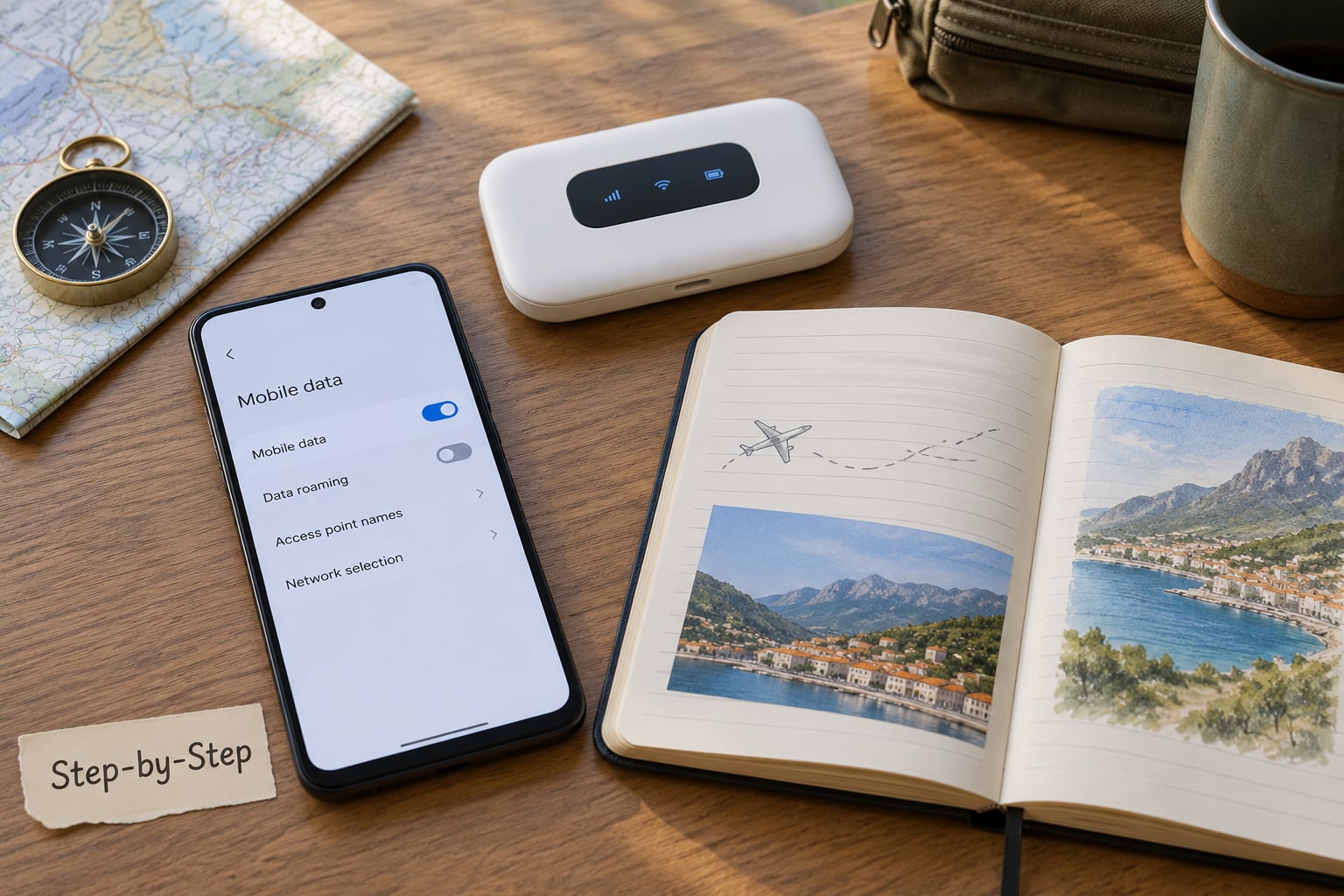
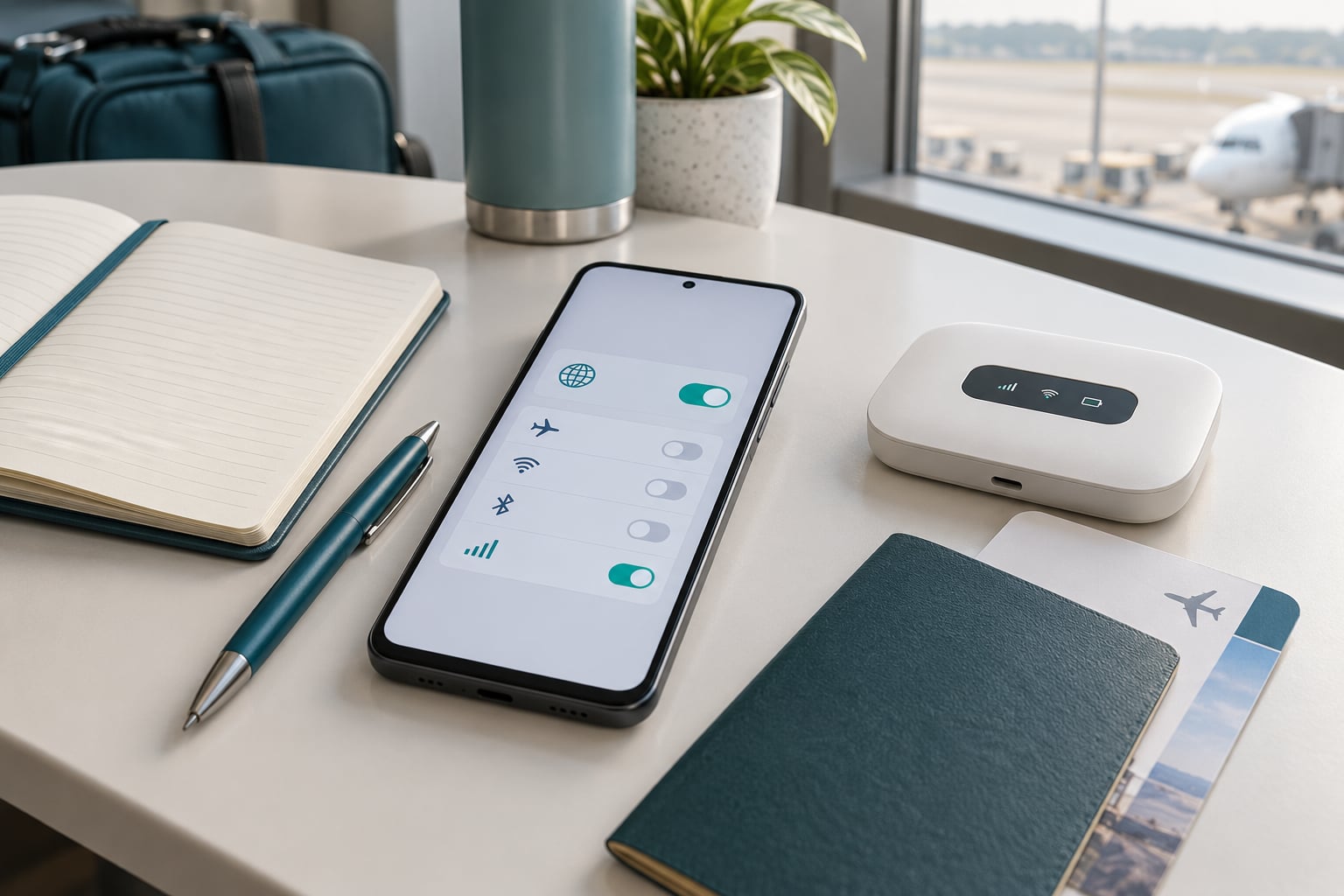
The order of operations is the part people get wrong. Set Airplane Mode on, change the roaming toggle, then turn Airplane Mode off once you are on the ground or connected to airport Wi-Fi. That way the phone cannot attach to a partner network during the change.
How to Turn Off Data Roaming on an iPhone
The iPhone path is four taps deep and identical on every recent model, whether you have one line or several.
- Open Settings, then tap Cellular (it reads “Cellular Data” on some versions).
- Tap Cellular Data Options.
- Tap Data Roaming and toggle Data Roaming to off.
- Press the Home button to return to the screen and confirm the switch shows white and off.
On iOS 18 and later the switch sits directly under Cellular Data Options, and on some regional builds the whole block appears as Data & Voice instead. Either way you are looking for the same Data Roaming switch.
If you carry more than one line, tap the line at the top of the Cellular screen first. The header shows which SIM or eSIM is selected, and each line has its own roaming toggle. That header is also how you tell which line is actually carrying your mobile data, which is the single biggest source of confusion for travellers using a home SIM alongside a travel eSIM. The working setup is roaming off on your home line and roaming on for the travel eSIM.
How to Turn Off Data Roaming on an Android Phone
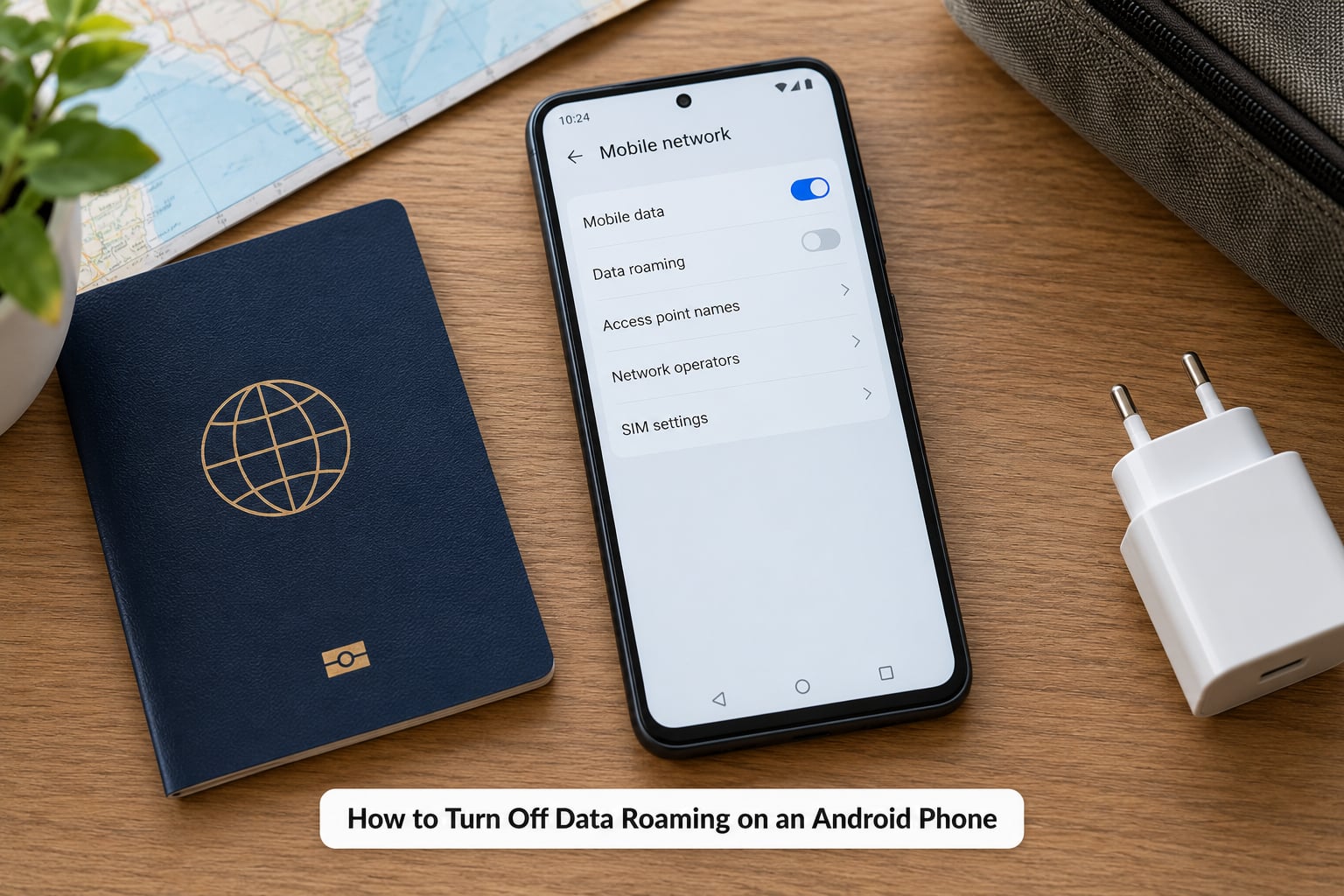
Android splits the path by manufacturer, but every version ends at the same switch.
Samsung Galaxy (S24, S25 and most recent models):
- Open Settings and tap Connections.
- Tap Mobile Networks (sometimes listed as “Mobile network”).
- Tap Data Roaming and toggle it to off.
Google Pixel and phones running Android close to stock:
- Open Settings and tap Network & internet.
- Tap SIMs, then tap the line you want to change.
- Switch Roaming off for that line.
Other brands use their own wording for the same place: Motorola and OnePlus bury it under Network & internet, Xiaomi and Redmi put it in SIM settings inside Connectivity, and some handsets label the screen “Mobile networks” with no second level at all. Search the Settings app for “roaming” and the OS will jump straight to the switch on most builds.
One Samsung quirk catches people out. If the Data Roaming switch is greyed out, it is because the master Mobile data switch above it is off. Turn mobile data on first, flip roaming off, then turn mobile data back off if that is what you want. On iPhone the same thing happens with Cellular Data.
How to Check That Data Roaming Is Off
Confirming the change takes ten seconds, and it is worth doing before you walk to the gate. Reopen the menu you just used and read the switch: on both platforms an off switch is white and to the left, an on switch is coloured and to the right.
Then run a quick practical test. Turn Airplane Mode on, switch it off again, and watch what connects. Your phone should either show bars with no data activity or sit on “No Service” without a data counter running. Open the data usage screen, Settings > Cellular > Cellular Data Usage on iPhone or Settings > Connections > Data usage on Samsung, and confirm the counter for today has stopped climbing.
Here is the honest split once you have completed how to turn off data roaming on your phone correctly:
Keeps working: Wi-Fi browsing, streaming and app use; Wi-Fi calling and Wi-Fi text messaging; calls and SMS over the local voice network in most countries; GPS, offline maps and anything already downloaded.
Stops working: mobile internet on a partner network; background email and photo sync; the mobile hotspot and Bluetooth tethering; automatic app downloads over cellular.
Different reasons produce the same symptom, so tell them apart before you conclude the toggle failed. Airplane Mode silences every radio, which is different from roaming being off. A master mobile data switch set to off blocks data everywhere, including your home network. A VPN can report a different carrier name than the one you are actually on. And a genuine network outage at your destination looks exactly like a settings problem for as long as it lasts.
The failure that matters most is a dual-SIM phone where you changed the wrong line. If your mobile data dies the moment you disable roaming, check the line header in Settings and make sure you switched the line that was carrying data, not the one that was quietly idle.
To stop accidental reactivation while travelling, keep Airplane Mode on during the flight and any airport layover with intermittent coverage. Commit to a pattern rather than a one-time action, because the toggle stays off on its own once you set it.
Common Mistakes
Confusing mobile data with roaming. These are two different switches. The mobile data master switch controls all cellular data, including on your home network. Data roaming controls only what happens outside your carrier’s coverage. If you turn off the wrong one, you land with no cellular data anywhere, which is confusing rather than dangerous.
Changing the wrong SIM. With a home SIM plus a travel eSIM, each line has its own roaming control. Toggle roaming off on the home line and leave it on for the travel line. Before changing anything, look at which line is marked active in the SIM section of settings.
Assuming Wi-Fi proves roaming is off. Being online through a hotel network tells you nothing about your cellular radio. The only reliable check is reading the switch itself.
Following an outdated menu path. Guides written years ago send you to Mobile networks where iPhone now says Cellular Data Options, and to Cellular where Android says Network & internet. If a path dead-ends, search the Settings app for “roaming” instead of hunting for the old label.
Not restarting after the change. A few older models keep the previous state until the phone reboots or the radio reattaches. If the switch shows off but behaviour says otherwise, restart the phone once and check again.
Prevention, in order: set the toggle before you leave the house, keep the master mobile data switch off during flights, and change the same setting in your carrier’s app or account. That last layer is the one worth the extra five minutes. The phone setting governs what the radio is allowed to do, while the carrier setting governs what gets billed, and travellers on forums repeatedly report carrier-level charges despite a correctly set phone toggle. Blocking roaming in the account is the backstop that holds when a line switch, a software update or a well-meaning travel companion flips things back on.
Two smaller habits help as much as the toggle. Download offline maps before you leave, since streaming maps over Wi-Fi eats a hotel connection fast. And if you will be near a border or boarding a ship, remember that partner networks can appear at sea or just over a national line, where your phone may pick up a cell tower before you have decided to connect at all.
Frequently Asked Questions
Can I turn off data roaming remotely if I no longer have my phone?
Not from the phone itself, since the switch lives on the device. You can still limit the damage through your carrier’s website or app, where most providers let you block international roaming or suspend the line entirely. Blocking roaming at the account level means even a phone that still has the toggle on cannot incur charges. Do this before you travel and treat it as the layer that protects you if the handset is lost, stolen or reset.
Does turning off data roaming stop calls and text messages?
Calls and standard SMS usually keep working, because they run over the local voice network rather than mobile data. What you lose is mobile internet: app data, browser, video calls over cellular, hotspot and background sync. In some countries your carrier has no voice agreement with the local network, so calls may also drop. Turning on Wi-Fi calling before you travel covers that case, as it routes calls over internet instead of cellular.
Will I still be able to use Wi-Fi after disabling data roaming?
Yes, and this surprises people more than anything else in the process. The roaming switch only governs the cellular radio. Wi-Fi connects through a completely separate radio, so browsing, streaming, messaging apps and downloads all behave exactly as they do at home. Download offline maps and any documents you need before you leave, because that convenience depends on being connected to a network rather than on your carrier.
How do I turn data roaming off on a prepaid travel phone?
The paths are identical to a contract phone, because the toggle is an operating system setting rather than a carrier feature. On an iPhone open Settings, tap Cellular, then Cellular Data Options, and switch Data Roaming off. On Android open Settings, tap Network and internet, tap SIMs, and switch Roaming off. Prepaid plans sold to travellers often already have roaming disabled at the network level, which is worth confirming in the plan terms.
Why can I still see a roaming icon after turning data roaming off?
The icon shows that your phone has attached to a partner network, not that data is being billed to you. Registration happens regardless of the roaming switch, so the symbol stays on screen and the network name changes. What matters is whether mobile data can pass through that connection. Verify by checking the switch again and watching the data usage counter, which should stay flat with roaming off.
How do I turn data roaming back on when I return home?
Follow the same menu path in reverse and flip the toggle back on. The setting does not change by itself while you are away, so it stays exactly as you left it. Once your phone reconnects to your carrier’s own network, the icon disappears on its own. If you changed anything in your carrier’s account before leaving, remember to remove that block too, otherwise you will return to a line with roaming switched off at the network level.
Conclusion
The first thing to do is open the cellular or mobile network settings and switch data roaming off, then read the switch to confirm it changed. On an iPhone that is Settings > Cellular > Cellular Data Options. On Android it is Settings > Connections > Mobile Networks on a Samsung, or Settings > Network & internet > SIMs on a Pixel.
Do it before you leave rather than after you land, turn Wi-Fi calling on while you are in the settings anyway, and repeat the change in your carrier’s account as a second layer. Wi-Fi, calls, texts, GPS and offline maps keep working either way, so the cost of turning roaming off is a slightly less convenient internet connection. That is a trade most travellers are glad to make.