Learning how to use Wi-Fi calling while traveling comes down to one rule: turn it on before you leave home, then join any Wi-Fi network at your destination and use your normal dialer. Calls and texts travel over the internet instead of a cellular tower, so they keep working where coverage is thin.
The catch is that Wi-Fi calling is not automatically free abroad, and it cannot be switched on reliably from an airport. Here is the short version of the whole process, and then I walk through each step.
- Confirm your phone model and carrier both support Wi-Fi calling
- Turn the feature on in your phone settings while you are still at home
- Save an emergency address and confirm your account is provisioned
- Place a test call on your home Wi-Fi, then again on cellular data
- Join a trusted network at your destination, staying out of airplane mode
- Dial normally, and use airplane mode plus Wi-Fi when you want to force Wi-Fi
For most trips that is ten minutes of setup. I do it the evening before a flight, then forget about it.
Table of Contents
- What You Need to Use Wi-Fi Calling While Traveling
- Step-by-Step: How to Use Wi-Fi Calling While Traveling
- Step 1: Confirm That Your Phone and Carrier Support Wi-Fi Calling
- Step 2: Enable Wi-Fi Calling Before You Leave Home
- Step 3: Check Your Carrier Account and International Terms
- Step 4: Test the Service on Home Wi-Fi and Cellular Data
- Step 5: Connect Safely to Wi-Fi at Your Destination
- Step 6: Make a Call and Troubleshoot the Connection
- Common Mistakes That Stop Wi-Fi Calling Abroad
- The Wi-Fi Calling toggle is missing entirely
- Calls only fail outside the country
- The phone sits on SOS and nothing connects
- The audio is robotic or breaks up
- The call connects, then drops in and out
- A surprise bill arrives after the trip
- Nothing works on a travel eSIM
- Frequently Asked Questions
- Can I use Wi-Fi calling in another country?
- Do I need international roaming to use Wi-Fi calling while traveling?
- Why does Wi-Fi calling show my home carrier’s number abroad?
- Can Wi-Fi calling make emergency calls?
- What is the difference between Wi-Fi calling and calling over an internet-based app?
- Conclusion
What You Need to Use Wi-Fi Calling While Traveling
Four things have to line up before your phone will make a call over Wi-Fi.
A compatible smartphone is the first one. Most iPhones from the last several years and most Android phones support it, but some budget handsets and some carrier-locked versions do not. A usable Wi-Fi network at your destination is the second, and that is not always as simple as it sounds, because hotel and cruise ship networks often put you through a sign-in page before your traffic is allowed through.
The third is carrier support on your specific line. Your handset can be perfectly capable and the feature still will not appear if your plan lacks it. Prepaid and low-cost plans are the usual offenders, as are older accounts and some business plans. The fourth requirement is access to your carrier’s account or activation service, either through the carrier’s app or the website, because a number sometimes has to be provisioned on their end before the phone will register.
Wi-Fi calling is worth understanding properly first, because it is easy to confuse with other things. It carries calls over the internet but presents them through your real phone number in your normal dialer. A messaging app like Signal or WhatsApp is a different system entirely: it uses its own login and its own contact list, and the other person needs the same app installed.
There is a second distinction that catches people out. Wi-Fi calling is normally a fallback rather than a forced switch. If your phone can find a weak cellular signal, it will quietly use it. You can change that behavior, which I cover in the last step.
One last thing to understand before you go. Wi-Fi calling moves voice traffic, and it needs a working phone line for emergency calls and for several other functions. Do not treat it as a replacement for local emergency access when you travel.
Step-by-Step: How to Use Wi-Fi Calling While Traveling
Step 1: Confirm That Your Phone and Carrier Support Wi-Fi Calling
Start with your handset. The quickest test is to search the settings for the feature itself, since most phones ship with it visible.
On an iPhone, open Settings, tap Cellular, then look for Wi-Fi Calling. On a Samsung Galaxy, open Settings, tap Connections, then Wi-Fi calling. If the toggle is there, your phone supports the feature and the only remaining question is whether your carrier has switched it on for your line. If it is missing entirely, the phone is either too old, blocked by a carrier lock, or the carrier has not provisioned the line.
Then check the carrier side. Look up your plan in the carrier’s app or account page and search the support pages for Wi-Fi calling compatibility. If you are on a prepaid, low-cost, or older plan, assume it is not included until the carrier confirms it in writing or in the app.
Check this while you still have a reliable connection at home. Travelers report the activation not going through when the phone is already outside the country, and that is exactly the situation you do not want to be sorting out from a foreign hotel room.
Step 2: Enable Wi-Fi Calling Before You Leave Home
On iPhone, go to Settings > Cellular > Wi-Fi Calling and turn on the toggle. If this is your first time, a carrier activation screen appears asking for an emergency address. Enter your home address and confirm it. That registered address is how emergency services locate you if a Wi-Fi call ever has to route to them.
On Samsung Galaxy, the path is Settings > Connections > Wi-Fi calling. Some Android versions bury it under Settings > Network and internet > SIMs, so if you cannot see it on the Connections screen, search the settings bar for Wi-Fi calling and the phone will jump straight to it.
If the toggle is greyed out or missing, the usual causes are a carrier that does not support the feature on your line, a missing carrier settings update, or a device that is not on an active cellular plan. Installing any pending carrier settings update from your carrier’s app often fixes the first two.
Step 3: Check Your Carrier Account and International Terms
This is where travelers get surprised, so read it carefully. Wi-Fi calling moves the voice part of your call over the internet. It does not change how the number is billed.
Calling a US number from a hotel Wi-Fi network in Paris is a US-domestic call for billing purposes, because your home number is what you are calling from. It usually lands on your normal plan. Calling a number in France from that same Wi-Fi network is a different matter, and it will generally be billed as international long distance from your home number.
If you receive a call while abroad, the recipient may be charged an international rate to call your number, and some carriers also bill the receiving side for international inbound. Both carriers’ support pages spell this out, and it is worth reading yours before the trip rather than after.
Make sure your account is active for the service. Many carriers will provision Wi-Fi calling from the app or over the phone, and a few will do it automatically the moment you turn the toggle on while connected to your home network.
Step 4: Test the Service on Home Wi-Fi and Cellular Data
A five-minute test at home prevents a bad week abroad. Join your home Wi-Fi, place a call to someone, and have them call you back. Then turn Wi-Fi off, confirm your cellular service is working, and repeat the test.
Interpret what you see like this. If the call connects and the sound is clear on Wi-Fi, the feature works. If it connects but the audio breaks up, the network is unstable rather than too slow, which is a different problem. If the call fails outright on Wi-Fi, the issue is provisioning, not signal, and you should contact your carrier before leaving.
Check your emergency calling too. With cellular service on and Wi-Fi connected, confirm your phone can still reach emergency services. If it cannot, resolve that before departure.
Step 5: Connect Safely to Wi-Fi at Your Destination
Hotel, airport, and café networks are usually fine for voice, but complete the sign-in page first. Many captive portals only release your traffic after you authenticate in a browser.
Prefer a password-protected network or a network you trust. That does not mean every open network is dangerous, but a voice call over an unencrypted hotel network is a reasonable thing to avoid when you are discussing anything sensitive, and a mobile hotspot from your own device is the cleaner alternative when one is available.
On quality, stability matters more than raw speed. Wi-Fi voice needs very little bandwidth, so a slow connection usually works. A connection that drops for two seconds every minute is what produces robotic audio and dropped words. The 5 GHz band tends to be steadier and less crowded than 2.4 GHz, which matters in busy hotels and airports.
One caution about VPNs: several travelers report a VPN interfering with the carrier registration that Wi-Fi calling needs. If a call fails consistently on one network, try again with the VPN off before you conclude anything.
Step 6: Make a Call and Troubleshoot the Connection
On a normal day, just dial. Your phone chooses Wi-Fi when the cellular signal is weak, and you can confirm the choice by looking for a Wi-Fi or calling indicator in your status bar.
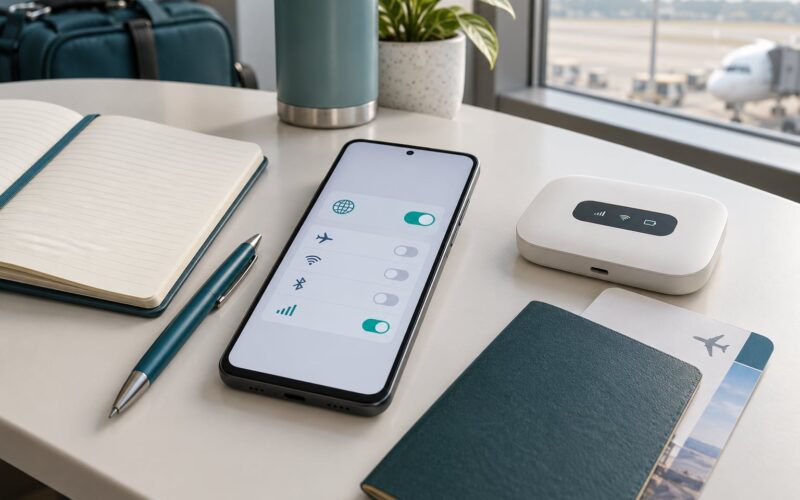
When you want to guarantee the call goes over Wi-Fi, use airplane mode. Turn on airplane mode, then turn Wi-Fi back on manually and join a network. Your phone will then have no cellular option at all and will place the call over Wi-Fi. This is also the method that works on a plane once the in-flight Wi-Fi is up, because there is no cellular network available in the cabin anyway.
When a call will not connect, work through these in order:
- Confirm Wi-Fi is on and you are joined to a network, not just a saved one
- Check the status bar for an SOS or No Service indicator
- Turn off airplane mode and switch Wi-Fi back on to reset the connection
- Restart the phone
- Confirm your line is active and Wi-Fi calling is provisioned on the account
- Try a second network entirely
If you are seeing SOS on an iPhone, that means no cellular network is available at all, which is normal in many foreign countries when roaming is off. The phone will still make Wi-Fi calls in that state once the Wi-Fi connection has registered. The confusion comes from expecting the indicator to mean the whole phone is offline, when it only refers to the cellular side.
Common Mistakes That Stop Wi-Fi Calling Abroad
Almost every Wi-Fi calling failure abroad is one of seven things. Work down this list and you will usually find the answer in a couple of minutes.
The Wi-Fi Calling toggle is missing entirely
This usually means your plan or your carrier does not support the feature, not that your phone is broken. Confirm eligibility with your carrier, then install any pending carrier settings update from their app. On a carrier-locked handset, check that the lock is compatible before buying a new phone.
Calls only fail outside the country
The feature was probably never activated before departure, and carriers often will not provision a line from abroad. Enable it at home; if that is impossible, ask your carrier to provision the line remotely while you still have a reliable connection.
The phone sits on SOS and nothing connects
SOS means no cellular network is available, which is normal abroad with roaming off. Wi-Fi simply has not registered with the carrier yet. Switch Wi-Fi off and on, restart the phone, and rejoin the network.
The audio is robotic or breaks up
That is an unstable connection rather than an insufficiently fast one. Move closer to the router, try the 5 GHz band, or switch to a different network.
The call connects, then drops in and out
The phone is handing the call between Wi-Fi and cellular. Force Wi-Fi with airplane mode, or disable cellular data for the duration of the call.
A surprise bill arrives after the trip
Calls to a foreign number are billed as international long distance from your home number even over Wi-Fi. Check your carrier’s international rates before you leave, and consider a messaging app for foreign numbers.
Nothing works on a travel eSIM
Wi-Fi calling is tied to whichever line the carrier provisioned it on, which is normally your home line, not the local one. Keep your home line active for calling and use the eSIM for data only.
Two more mistakes come up constantly. The first is enabling Wi-Fi calling after landing and assuming a failure means the feature is broken, when the more likely explanation is that the line was never provisioned from home. The second is leaving your cellular data on while traveling, which lets the phone quietly hand your calls back to roaming whenever a local tower appears.
If you carry a local eSIM or SIM for data, remember that Wi-Fi calling belongs to whichever line the carrier provisioned it on. That is normally your home line, and it keeps working as long as you keep that line active and connected to Wi-Fi.
Frequently Asked Questions
Can I use Wi-Fi calling in another country?
Yes, in most countries, as long as your carrier supports the feature on your line and you enable it before you leave. Calls travel over any Wi-Fi network you join and keep your normal number. A few countries and some prepaid plans restrict it, so confirm with your carrier first. You do not need local cellular service to place a Wi-Fi call.
Do I need international roaming to use Wi-Fi calling while traveling?
No. Roaming and Wi-Fi calling are separate paths. Wi-Fi calling uses the internet connection and your home number, so you can leave cellular roaming switched off entirely. That is the point of it. Keep an eye on your plan anyway, since turning roaming off does not change how international numbers are billed.
Why does Wi-Fi calling show my home carrier’s number abroad?
Because the feature sends your regular number over the internet rather than switching to a local network. Your home number is what other people see, and it is what determines billing. Calling a number in the country you are visiting from that home number still counts as international long distance on most plans.
Can Wi-Fi calling make emergency calls?
Wi-Fi calling can route an emergency call, and it is often the only option in a place with no cellular coverage. But the address registered on your account is used to locate you, so keep it current and set it to somewhere you actually are. Outside the United States, expect weaker location accuracy and fewer supported emergency networks.
What is the difference between Wi-Fi calling and calling over an internet-based app?
Wi-Fi calling runs through your carrier, your real number, and your regular dialer and contacts. An app like Signal or WhatsApp is a separate service that needs its own account and requires the other person to have it installed. Wi-Fi calling works with anyone who has your number; an app only works with the people who joined you on it.
Conclusion
Start tonight, not tomorrow. Confirm your carrier supports Wi-Fi calling on your line, switch it on in Settings > Cellular on iPhone or Settings > Connections on Android, save an emergency address, and make two test calls before you pack.
Carry a second way to reach people as well, whether that is a messaging app or a local SIM for data. And remember that Wi-Fi calling helps you stay in touch, not that it replaces local emergency services when you travel.