Hotel Wi-Fi is shared with everyone else in the building, and that is the whole problem. Learning how to use hotel Wi-Fi safely takes about five minutes of setup and a few habits while you browse: confirm the network name with the front desk, turn on a VPN before you open anything, refuse any login page that asks you to install software, and use your phone’s data for banking.
None of that is exotic, and none of it slows you down much. This guide walks through what you need before you leave home, the connection sequence step by step, the mistakes that catch travelers out, and what to do if a login page looks wrong.
Table of Contents
- What You Need
- A charged device with current software
- A VPN you can switch on instantly
- Two-factor authentication on your important accounts
- A way to verify the network name
- A fallback connection
- A separate card for travel spending
- Step-by-Step
- 1. Confirm the Official Hotel Network
- 2. Check Whether the Network Requires a Password or Login Page
- 3. Connect Your Device and Update Security Settings
- 4. Use a VPN for Sensitive Browsing
- 5. Avoid Risky Requests and Suspicious Login Prompts
- 6. Browse Safely, Download Carefully, and Disconnect
- Common Mistakes Travelers Make on Hotel Wi-Fi
- Joining any network that looks close enough
- Treating the password as the security
- Clicking through the browser warning
- Starting the VPN too late
- Assuming HTTPS means the whole network is safe
- Trusting the hotel’s own secure network or VPN
- Saving passwords on a hotel computer
- Leaving the network connected overnight
- Forgetting what to do afterwards
- Frequently Asked Questions
- How can I tell if hotel Wi-Fi is safe before I connect?
- Is hotel Wi-Fi safe if it has a password?
- Is it safe to do online banking on hotel Wi-Fi?
- What are three things a VPN cannot protect me from?
- Why does my hotel Wi-Fi say it is not secure?
- What should I do if a hotel login page asks me to install something?
- Conclusion
What You Need
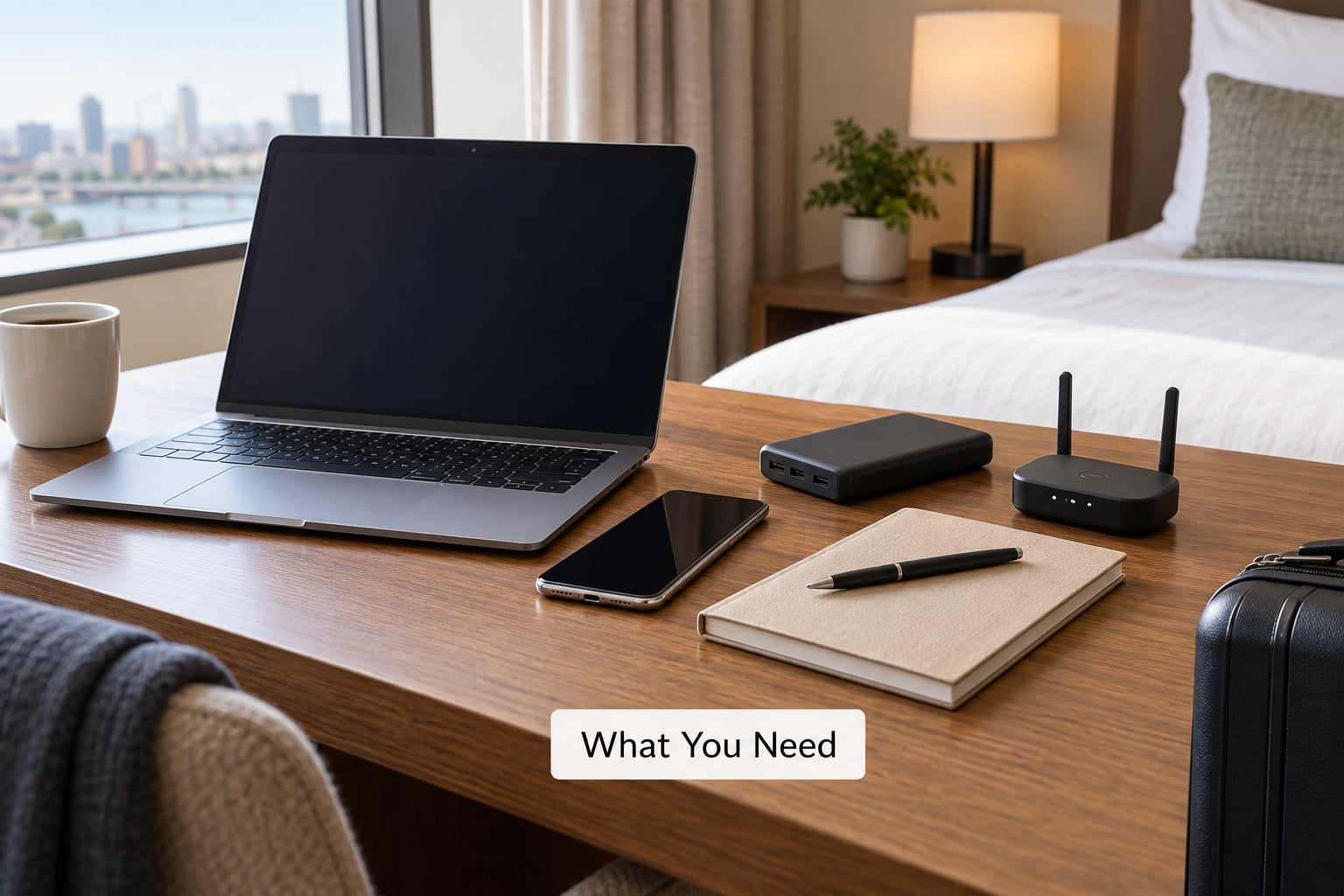
Most of this list is things you already own. The point is to have them working before you’re standing in a lobby with 30% battery.
A charged device with current software
Update your laptop’s operating system, your phone, your browser, and anything that syncs to them — password manager, cloud storage client, antivirus. Patches matter more than usual here because most hotel attacks rely on you opening something, and current software closes a lot of those doors.
A VPN you can switch on instantly
Any reputable VPN app will do. What matters is that it runs on all the devices you’re traveling with and that you know exactly which button turns it on. Sign in and confirm it connects before you leave the house. Testing it on your home network takes a minute and saves a lot of confusion later.
Two-factor authentication on your important accounts
Email, banking, and your main password account. If a login attempt comes from a hotel in another country and someone has your password, the second factor is what stops it. Set up an authenticator app rather than relying on SMS codes, since cellular networks can be spoofed in some places.
A way to verify the network name
The hotel’s printed information card, the QR code on the desk, or the front desk itself. If the network name is printed nowhere and no one at reception can tell you, treat that as a reason to use your own connection instead.
A fallback connection
Your phone’s mobile data, an eSIM you install before you fly, or a portable cellular router if you’re staying somewhere for weeks. The fallback matters most in the exact situations where you most want Wi-Fi: rural hotels, old buildings with thick walls, and countries where your home plan doesn’t roam.
A separate card for travel spending
A debit card with a low daily limit, kept separate from your everyday one. It limits the damage from anything that does go wrong, and it’s the advice travelers repeat most consistently on travel security forums.
Step-by-Step
1. Confirm the Official Hotel Network
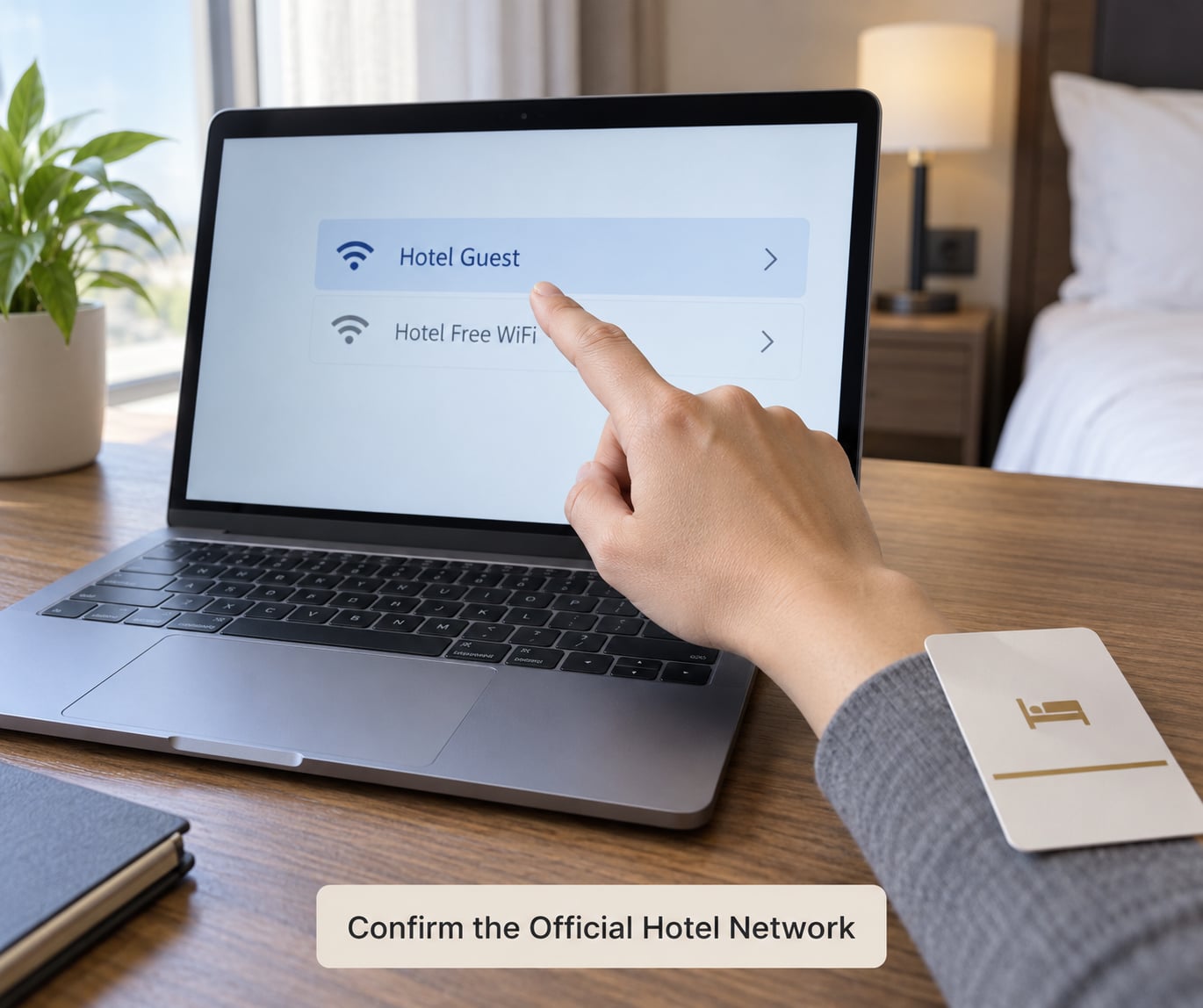
Open your device’s Wi-Fi list and compare the name against what the hotel told you. A rogue access point called an evil twin mimics a legitimate network name so your device connects to it automatically and everything you type passes through their machine instead of the real router.
The name on screen will rarely match a hotel brand. It’s usually something like the property name, the SSID includes a room or floor reference, or there’s a generic network shared across a whole city block. Ask the front desk, read the card on the desk, or scan the QR code in the lobby. All three beat guessing.
If two networks with nearly identical names appear in your list, or you see a network you did not expect, don’t connect to either one until staff confirm which is real. The same rule applies to airport and café networks — anything that appeared while you were sitting still deserves a second look.
2. Check Whether the Network Requires a Password or Login Page
Guest networks usually fall into one of three shapes, and each one tells you something different.
An open network asks for no password and no login. Anything sent over plain HTTP on that network can be read by others. It’s the weakest option, and lots of hotel lobbies still offer one.
A password-protected network asks you for a shared password, usually printed on the key card. This does not mean your traffic is encrypted. On most hotel setups, the password just stops passersby from connecting; it does not create a secure tunnel between you and the router. A password is access control, not privacy.
A browser-based login portal is a captive portal: you join an open network, then a page pops up asking for your room number and last name. Your device is added to a whitelist once you sign in. It’s a convenience system rather than a security system, and it’s the shape attackers imitate most closely.
A fourth case, WPA2 Enterprise, asks you to log in with credentials issued by the hotel. When it works properly it’s strong. When the hotel’s certificate has expired or is self-signed, your device shows a security warning — and that’s a moment where travelers make bad decisions under time pressure.
3. Connect Your Device and Update Security Settings
Forget old networks first. Your phone joins saved Wi-Fi automatically and without asking, so a network you stayed on last year in another city will reconnect the moment you’re in range.
On iPhone and iPad, turn off Wi-Fi under Settings > Wi-Fi after you finish, and remember saved networks in Settings > Wi-Fi > Known Networks. On Android, look under Settings > Wi-Fi and disable Auto-connect or Automatically connect, then use Forget on individual saved entries. Most Android skins have moved these labels around, so check both the connected-network menu and the three-dot overflow menu.
On Windows, set the network profile to Public rather than Private whenever you are asked, and turn off Network Discovery and File and Printer Sharing in Settings > Network & Internet > Wi-Fi > Properties. On macOS, confirm FileVault is on and keep sharing set to Off under System Settings > General > Sharing.
Turn on HTTPS-only mode in your browser. Chrome, Edge and Firefox all have this setting, and it upgrades any plain-HTTP request to HTTPS where the site supports it. That alone closes a large share of the sniffing risk on an open network.
Two settings worth checking on every device: automatic Wi-Fi joining when a network is in range, and Bluetooth or AirDrop-style nearby-device discovery. The second is how phones end up visible to other guests on a flat network. Leaving both off takes about thirty seconds and you will forget you did it.
4. Use a VPN for Sensitive Browsing
A VPN wraps your traffic in an encrypted tunnel between your device and the VPN’s server. On a hotel network, traffic that leaves your device is unreadable to anyone sharing the same broadcast domain, which removes the packet sniffing and most man-in-the-middle attempts.
Turn it on before you open the first tab, not after. A VPN that switches on mid-session has already missed whatever loaded in the clear, and that gap is exactly the window an attacker wants. Connect it the moment the Wi-Fi icon appears.
Make sure the kill switch is enabled. It blocks traffic whenever the VPN drops unexpectedly, which matters more on hotel networks than at home because connections flicker and roam between access points constantly.
What a VPN does not do is worth knowing too. It does not make a phishing page safe, it does not protect a device already running malware, and it does not stop someone watching you type your password. It also hides your browsing from the hotel network operator, not from the websites you visit — those still see your real IP address after the tunnel exits, unless the site is also served over HTTPS.
If your employer issues a corporate VPN, use that one for work. It enforces device compliance rules you are expected to follow, and a personal VPN can conflict with it.
5. Avoid Risky Requests and Suspicious Login Prompts
Disconnect and ask at the front desk if any of these show up. No legitimate hotel network needs you to install anything to get online.
- A page telling you to install a browser, extension, certificate, or “security” or “troubleshooting” tool. This is the single most common scam pattern on hotel networks.
- A pop-up asking for camera, microphone, contacts, or location permission.
- A requirement to download a hotel app just to authenticate.
- A certificate warning on a login page, telling you to click through. Expired or self-signed certificates happen at real hotels, so confirm with staff rather than continuing on your own.
- Redirects to unrelated search pages, or affiliate-style pages on what you were searching for.
- Any request for your banking password, card PIN, or one-time code on the network itself.
The pattern behind these is the same: get you to run something on your device, and the device is no longer yours. Fake captive portals imitating hotel login pages have sat behind several widely publicised warning campaigns, and the fix is simple. Close the tab, forget the network, and start again on the verified one.
6. Browse Safely, Download Carefully, and Disconnect
Avoid online banking, brokerage access, and anything else you would be upset to lose while on hotel Wi-Fi. If you have no fallback connection and it cannot wait, use mobile data for it and use the hotel network for everything else.
Skip downloads that arrive through the network rather than through a link you chose yourself, and be suspicious of movie streaming, cracked software, and game mods. These are the common carriers on guest networks.
On a borrowed or hotel business-center computer, treat it exactly like a public terminal: use a private window, don’t sign into anything personal, and don’t save passwords. A session restore can put your credentials in front of the next user.
Two-factor authentication matters most here. It’s what keeps someone with a stolen password out of your accounts when they’ve just connected to your device over the same network.
When you’re done, forget the network on your devices. It takes five seconds and stops your phone from joining the same access point again on your next visit to the lobby.
Common Mistakes Travelers Make on Hotel Wi-Fi
Joining any network that looks close enough
Your device will happily connect to an evil twin with the right name, and you won’t get a warning that anything unusual happened. Ask staff for the exact name and match it character by character before you tap it.
Treating the password as the security
Is hotel Wi-Fi safe if it has a password? That is the most common misconception in this topic. A shared password stops a passerby from connecting. It does not encrypt your session, and it certainly does not stop a device already on the network from observing unencrypted traffic. Judge the network by how traffic is protected, not by whether a password exists.
Clicking through the browser warning
Your device detected something wrong. It’s a reasonable instinct to accept it and carry on because you need to check email, and it’s exactly what the warning is trying to prevent. Confirm with the front desk, then either use the corrected network or a fallback connection.
Starting the VPN too late
Connecting the VPN after your banking tab is already open leaves the sensitive part unprotected. Switch it on before the browser, every time, so it becomes a reflex rather than a decision.
Assuming HTTPS means the whole network is safe
HTTPS means traffic to that particular site is encrypted between you and that site. It doesn’t cover plain HTTP sites, it doesn’t hide which sites you’re contacting, and it doesn’t stop a fake portal that looks legitimate. HTTPS is one layer, not the whole stack.
Trusting the hotel’s own secure network or VPN
If the hotel’s infrastructure is the attack surface, a service running on that infrastructure protects very little of it. A second network run by the same operator on the same hardware is not a second layer.
Saving passwords on a hotel computer
Never. Use your own device for anything you’d mind losing, and if you must use a shared machine, keep it to a private window and sign out completely.
Leaving the network connected overnight
A forgotten connection means your device re-associates every time the access point is in range. Forgetting the network on your devices before you leave the room is the simplest fix there is.
Forgetting what to do afterwards
If you clicked through a warning, installed something, or entered credentials on a page that felt off, change your password from a trusted device, revoke active sessions in your email and banking accounts, and turn on two-factor authentication if it wasn’t already on. Then check for unfamiliar app passwords or forwarding rules.
Frequently Asked Questions
How can I tell if hotel Wi-Fi is safe before I connect?
You usually cannot tell from the network name alone, which is why verification matters. Ask the front desk or read the printed card for the exact SSID, check for a nearly identical name created nearby, and note whether the connection needs a password, a browser portal, or nothing. If staff cannot confirm the name, skip it and use mobile data instead.
Is hotel Wi-Fi safe if it has a password?
A password controls who can join, not what happens to your traffic once they are in. On most hotel networks the password stops a passerby from connecting while leaving traffic between your device and the router readable. Password-protected is a little better than open, and the answer is still no on its own — pair it with HTTPS and a VPN.
Is it safe to do online banking on hotel Wi-Fi?
It is the one activity worth moving off the hotel network whenever you can. A VPN with a kill switch makes the session considerably harder to intercept, but the cleanest option is your phone’s mobile data. If you have no fallback connection, wait until you are on mobile data, enable two-factor authentication first, and check for unfamiliar transactions afterwards.
What are three things a VPN cannot protect me from?
First, phishing — a fake login page harvests your password before any tunnel exists. Second, malware already running on your device, which a VPN happily routes. Third, physical access, including a hotel business-centre computer saving your credentials. A VPN also does not hide your identity from the sites you visit, only from the local network.
Why does my hotel Wi-Fi say it is not secure?
It means your device cannot verify the network’s identity. Hotel captive portals often sit on open networks using self-signed or expired certificates, so there is no authority your device trusts to confirm you are talking to the real router. That warning is expected on many hotel networks, which is exactly why confirming the network with staff matters.
What should I do if a hotel login page asks me to install something?
Close the tab, forget the network, and do not reconnect. A page asking you to install a browser, extension, certificate, or troubleshooting tool is never part of normal Wi-Fi access, and fake captive portals built this way sit behind several widely publicised warning campaigns. Ask the front desk how to authenticate, or switch to mobile data.
Conclusion
The safest sequence is short: ask the front desk for the exact network name, connect only to that one, switch your VPN on before opening a browser, keep two-factor authentication running on your important accounts, and move banking to mobile data. If a login page asks you to install anything, or a certificate warning appears out of nowhere, stop and ask staff rather than clicking through. Those two habits remove most of the practical risk before it starts.